Your bay locks itself between sessions.
SimLock watches your simulator software, locks the screen when a session ends, and greets the next golfer by name straight from your Google Calendar. Built for GSPro and Uneekor bays.
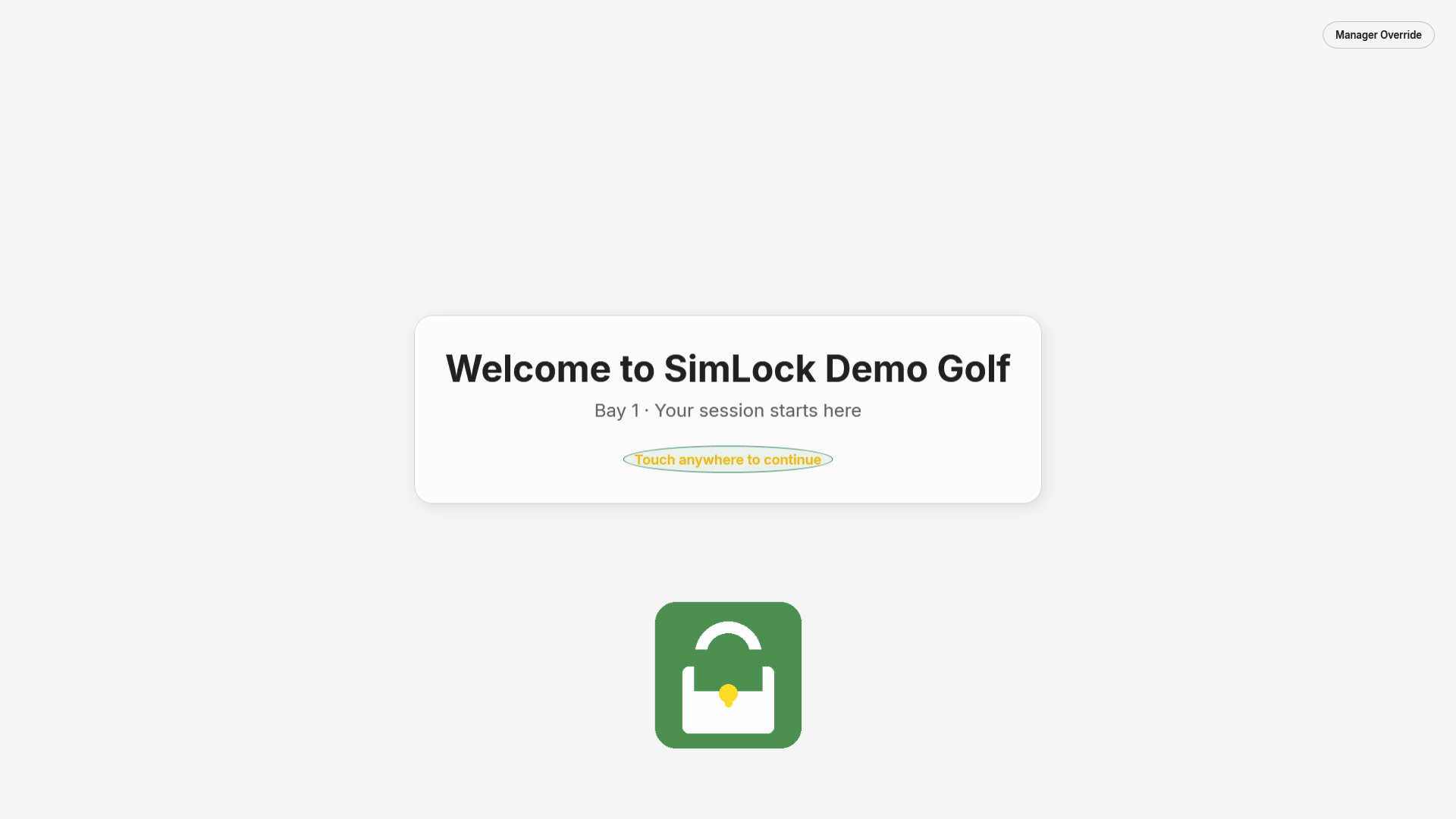
Install once. The bay runs itself.
Install on the bay PC
One installer puts the lock screen, the Admin panel and the background Monitor on the machine. The Monitor starts with Windows.
Set it up in Admin
Pick the software to watch, set your PIN, add your logo and tutorial video. Or switch to reservation mode and connect Google Calendar in one click.
Walk away
When a session ends the screen locks. The next golfer sees their name and start time, taps once, and plays.
Everything a self-serve bay needs
Automatic lock
The Monitor watches GSPro or any program you choose and brings the lock screen back the moment it closes.
Reservation mode
Connect Google Calendar. Golfers are welcomed by name at their start time; the bay relocks when the booking ends.
Remembers returning golfers
First visit gets the intro video. Every visit after skips straight to play. Staff can mark anyone as returning.
Tutorial video and instructions
Paste a YouTube link or drop in a file. Show a PDF or web page of house rules before the first swing.
Your brand on every screen
Logo, backgrounds, colours, fonts and every line of text on the lock screen are yours to set.
Launches the session for them
Optionally start GSPro, or open the GSPro tile in the Uneekor launcher, the moment a golfer taps Start.
What your golfers see
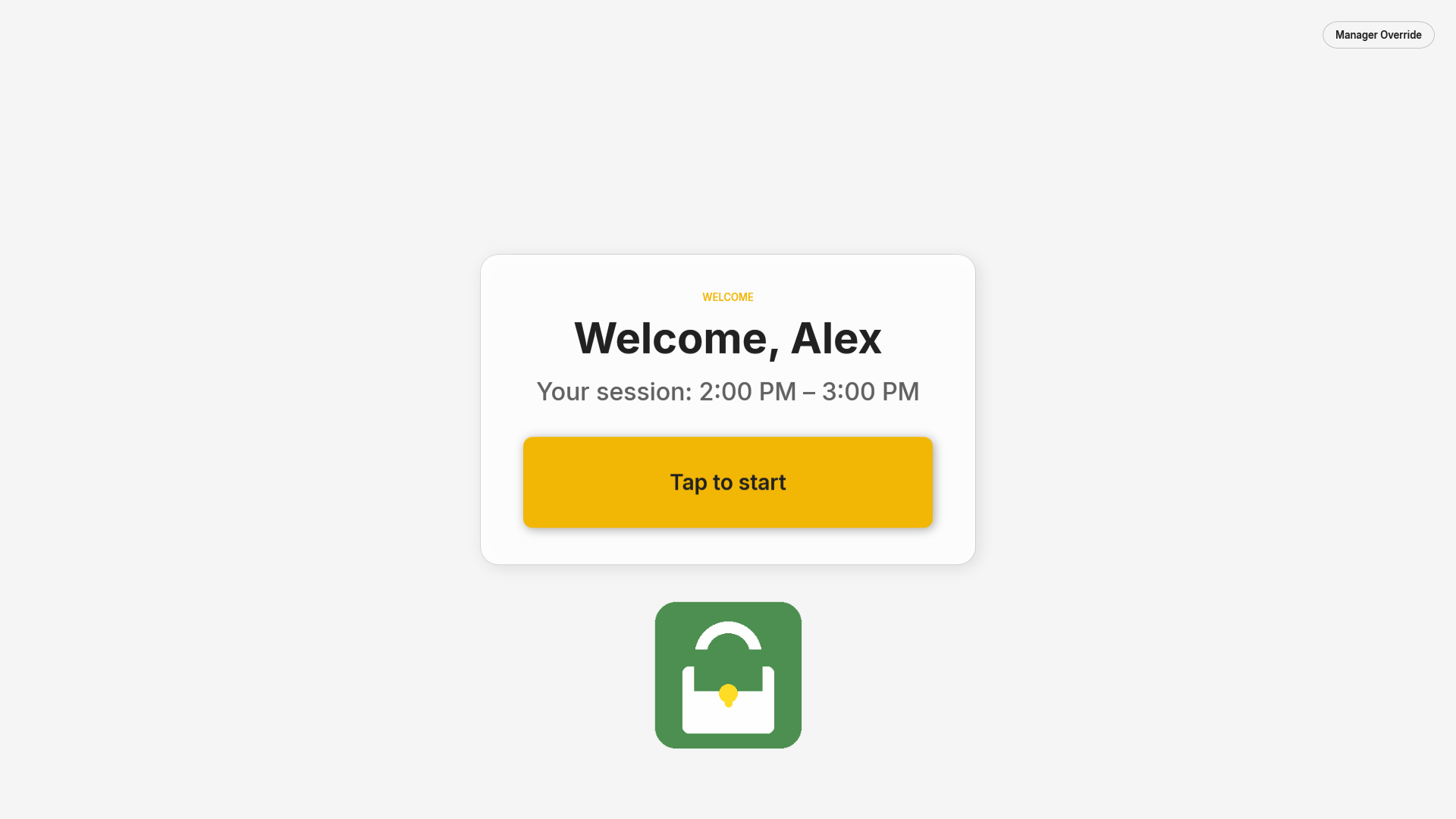
Welcome by name
Reservation mode reads the booking and greets the golfer at their start time.
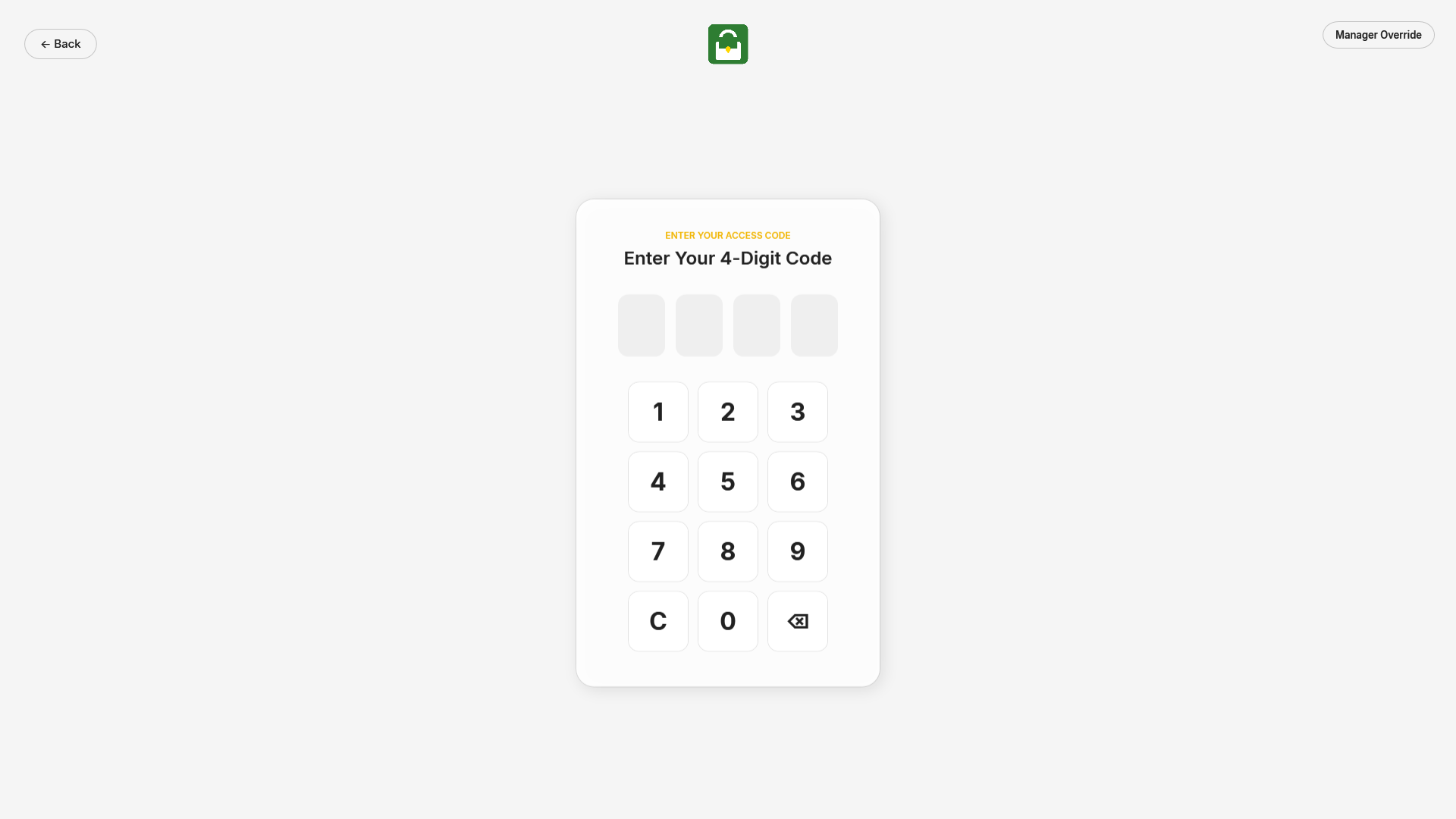
PIN for returning golfers
A 4-digit code unlocks the bay in process-monitor mode. Staff can override any time.
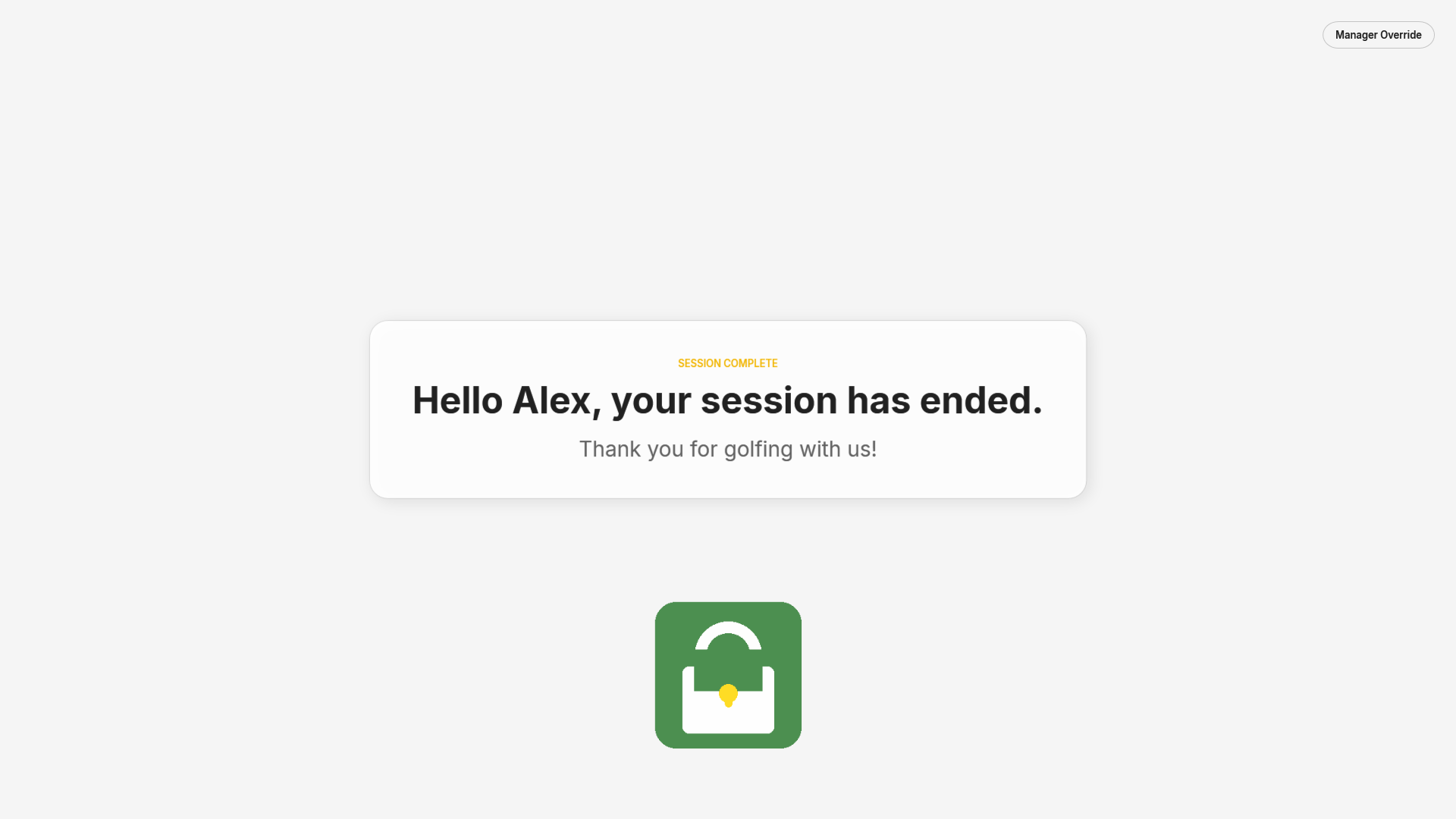
Session ended
The bay relocks on time, closes the session app, and waits for the next booking.
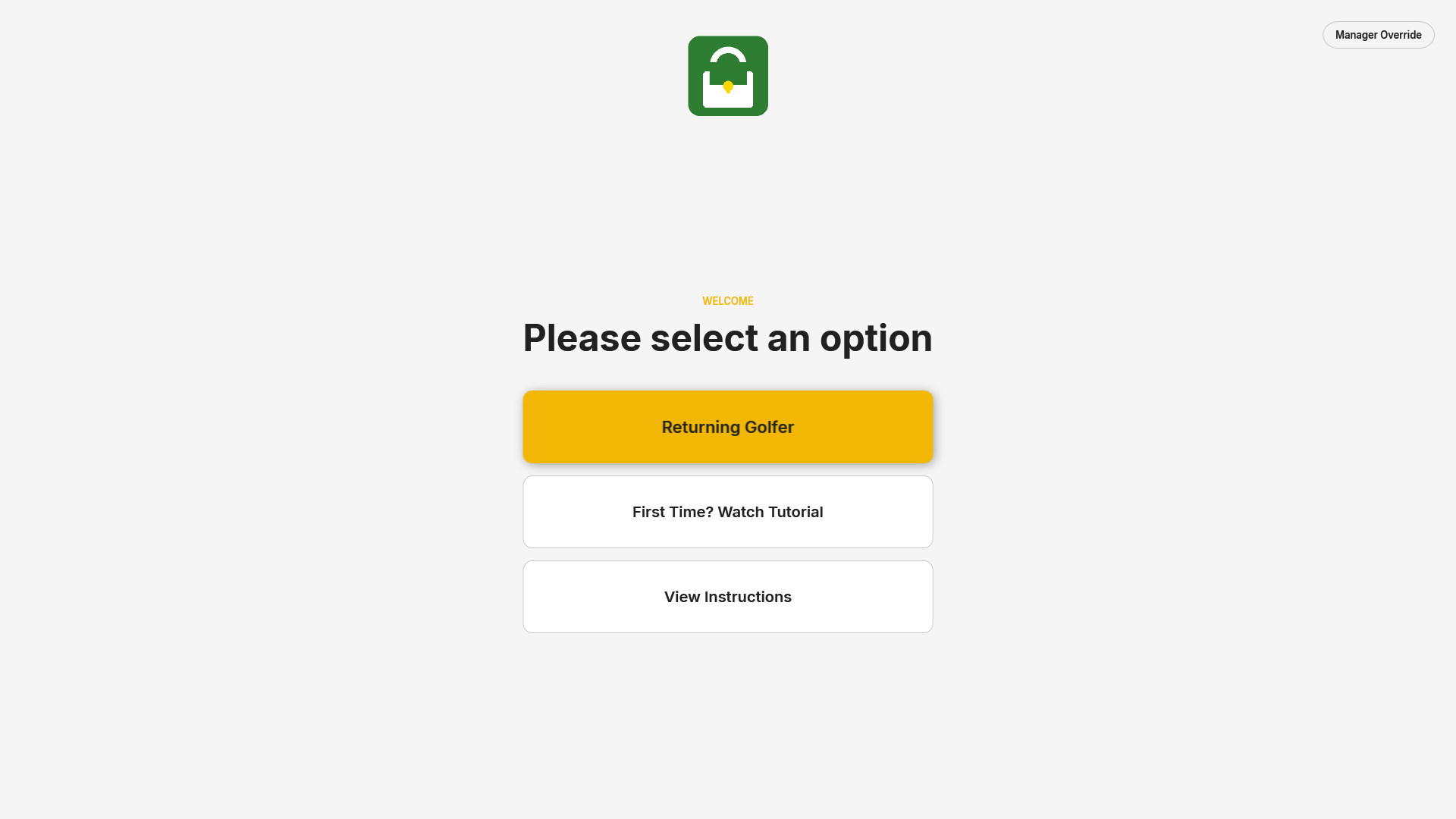
Main menu
Returning golfer, tutorial video, or house instructions — the buttons you turn on.
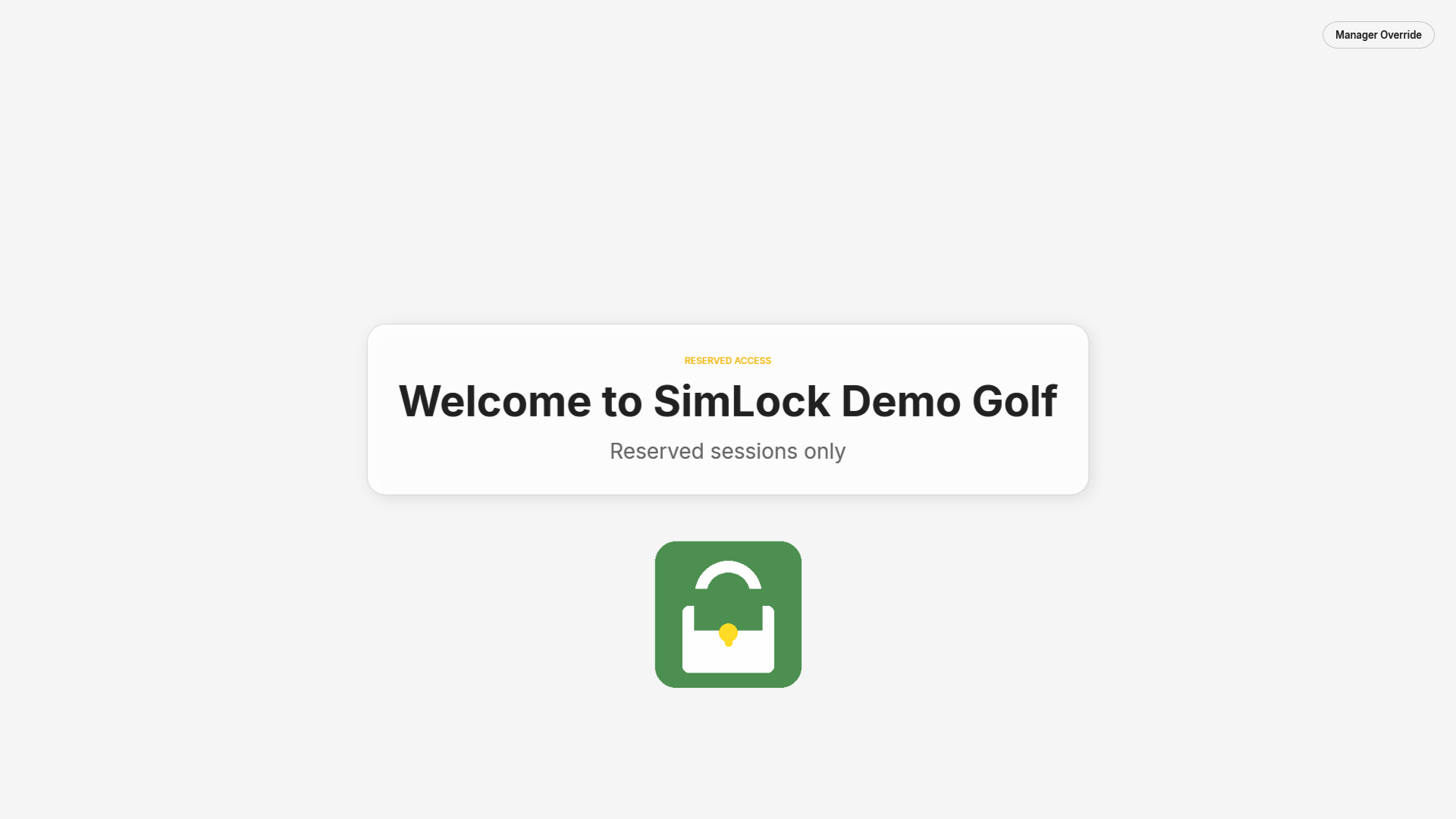
Idle between bookings
Reserved-access screen with a Manager Override button for staff.

Tutorial video
First-time golfers watch your intro before the bay unlocks.
One panel, every setting
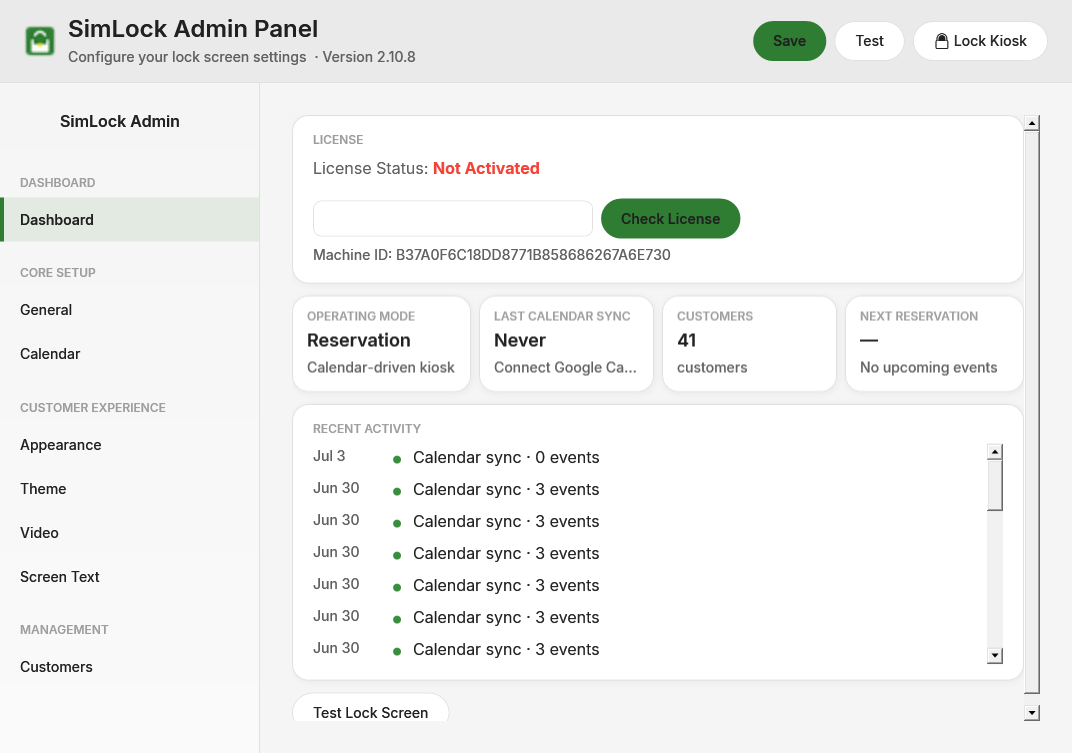
The Dashboard shows the bay's status at a glance — license, calendar sync, next reservation, recent activity — with a Lock Kiosk button for staff.
- General — PIN, admin password, process to watch, operating mode
- Calendar — one-click Google connect, this bay's calendar, manual sync
- Appearance & Theme — logo, backgrounds, colours, fonts
- Video & Screen Text — tutorial, instructions, every label
- Customers — who has visited, edit names, mark returning
Ready to put your bay on autopilot?
Install in minutes. Activate with your email. Questions? We answer them.