Admin panel · Dashboard
Admin panel
Dashboard
What each card, status line and button on the Dashboard means, and how to activate, verify, deactivate and relock the bay from it.
The Dashboard is the first page you see when the Admin panel opens: "This bay at a glance: licence, operating mode, calendar sync and recent activity." It refreshes itself every 5 seconds, so you can leave it open and watch the bay work.
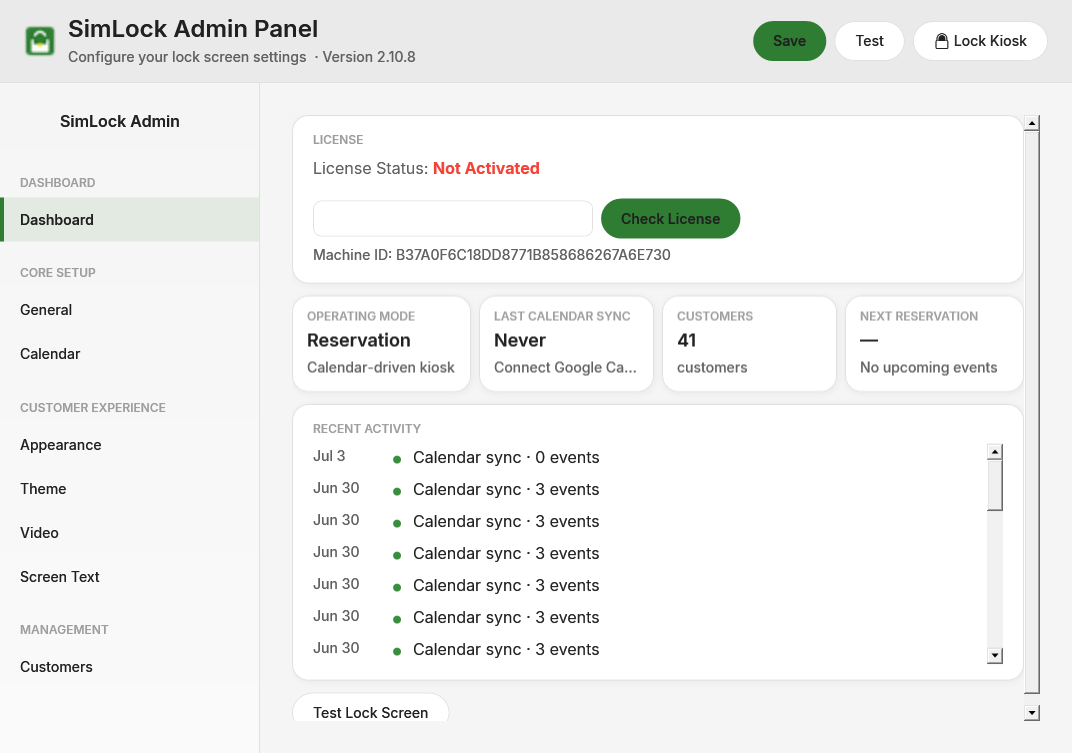 The Dashboard in Reservation Mode. The Next Reservation card is hidden in PIN mode.
Use the header buttons
The three buttons in the top-right corner are on every page.
| Button | What it does |
|---|---|
| Save | Saves every page's settings to this bay. The button reads Saved! for a moment. A running lock screen picks the change up immediately. |
| Test | Opens the lock screen so you can try your changes. |
| Lock Kiosk | Ends maintenance, restores kiosk hardening, launches (or wakes) the lock screen and closes this panel. See below. |
Lock Kiosk discards unsaved changes
Lock Kiosk asks you to confirm. It does not save first. Click Save before Lock Kiosk if you changed anything.
Activate and check the licence
The LICENSE card shows License status: followed by Not Activated (red) or Activated (green), and the Machine ID underneath.
To activate:
- Type the email address you bought SimLock with into License email.
- Click Check License. The button reads Checking... while it talks to simlock.golf.
- On success the status turns to Activated, the email box is replaced by your address with Verify and Deactivate buttons, and a line reads "Verified Oct 1, 2:41 PM · valid to Oct 8".
Verify asks the licence server for a fresh token straight away; the bay also does this by itself once a day. Deactivate frees this PC's activation so you can use it on another machine.
If the licence server stops accepting this PC (for example because the activation was released), a red line appears under the status: "LICENSE REJECTED since …: reason. This bay STOPS unlocking on date unless it is reactivated." The bay keeps working until then. To fix it, click Deactivate and activate again, or contact support. See Licensing & activation.
Read the status cards
| Card | Shows |
|---|---|
| OPERATING MODE | Process Monitor with Monitoring <program>.exe, or Reservation with Calendar-driven kiosk. Turns red with MANAGER OVERRIDE ON — kiosk unlocked. The next booking ends it. while an override is on. Change the mode on Kiosk Mode. |
| LAST CALENDAR SYNC | How long ago the calendar was read (30s ago, 4m ago) and how many events came back. Never with Connect Google Calendar means Reservation Mode has not synced yet; PIN mode reads Reservation mode disabled. |
| CUSTOMERS | How many customers are in the list. Click it to open Customers. |
| NEXT RESERVATION | Reservation Mode only. The name and start time of the next booking on this bay's calendar, or — with No upcoming events. A booking with no name shows (unnamed). |
Sync shows Never but you are connected
The Monitor records a sync time after every attempt, even a failed one, so Never means it has not tried at all. Check that SimLock Monitor is running (tray icon) and that the mode was saved as Reservation. If the time updates but the count stays at 0 events, check This bay's calendar on Google Calendar.
Watch the activity feed
The activity feed lists the last 25 things the bay logged, newest first. Each line has a relative time, a coloured dot and the message: green is information, amber a warning, red an error. Until the bay has done anything it reads No activity yet.
Typical entries are calendar syncs and errors, customer lookups and arrivals, session launches and stops, standby and launch-monitor messages, help-button actions, licence checks and Manager Override changes. When a golfer says "it did not work", this feed is the first place to look. See Troubleshooting.
Relock the bay after maintenance
After a Manager Override the bay stays unlocked, with hardening relaxed, until someone relocks it.
- Click Lock Kiosk in the header.
- Confirm Lock the kiosk now?
- SimLock clears the maintenance flag, re-applies the kiosk hardening, starts the lock screen (or brings back one hidden behind a running session) and closes the Admin panel.
The same is available from the tray icon: right-click and choose Launch Lock Screen. In Reservation Mode the next booking also ends a forgotten override by itself.
Contact support
The footer reads "SimLock by NeutroCorp LLC · neutrocorp.com · support@neutrocorp.com". When you write in, include the version from the header and what the activity feed shows around the time of the problem.