Start here · Overview
Start here
Overview
What SimLock does, the two operating modes, the programs that make it work, and what changed in 2.25.
SimLock is a full-screen lock screen for Windows golf-simulator bays. It sits in front of your simulator software and decides when a golfer may use the bay. In PIN mode, returning golfers unlock with a 4-digit code and first-timers watch a short intro video. In Reservation Mode, the bay follows your Google Calendar: it welcomes the booked golfer by name, starts the simulator for them, and locks again when the booking ends. Staff manage everything from a password-protected Admin panel.
These pages describe SimLock 2.25.0. The Admin panel shows its version in the header ("Version X.Y.Z").
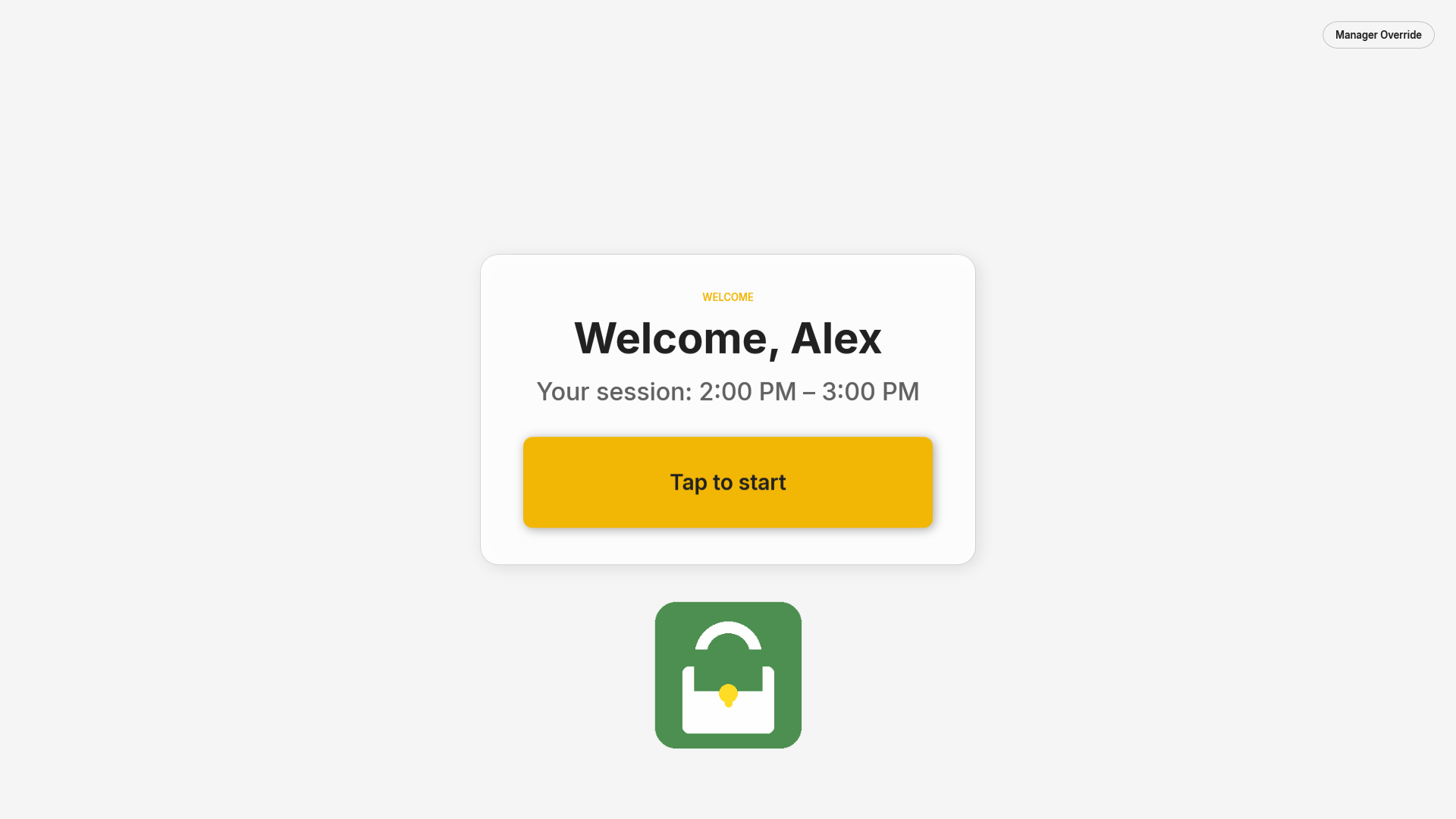 Reservation Mode: the welcome screen a booked golfer sees at their start time.
Choose an operating mode
You pick the mode in the Admin panel on the Kiosk Mode page, and you can switch at any time.
| Mode | When the lock screen appears | How a golfer gets in |
|---|---|---|
| PIN mode (Process Monitor) (default) | The moment your simulator software starts (for example gspro.exe) |
Taps Returning Golfer and enters the 4-digit unlock code, or taps First Time? Watch Tutorial and watches the video to the end |
| Reservation Mode (Google Calendar) | Always. The bay shows an idle screen until a booking starts | A booking on this bay's Google Calendar becomes active, the golfer's name appears, and they tap Tap to start |
PIN mode
Use this for walk-in play or when you sell time at the counter. SimLock watches for one program. When that program starts, the lock screen comes up on top of it and nobody can reach the simulator until they unlock. When the golfer unlocks, the lock screen closes and SimLock waits for the next launch of that program.
Reservation Mode
Use this when golfers book online and the bookings land in Google Calendar. SimLock reads this bay's calendar, shows a personalised welcome screen when a booking is active, can start the simulator software for the golfer, hides itself while they play, and relocks the bay when the booking ends. It keeps a customer list so it knows who has visited before, across all of your bays. Reservation Mode needs a Google account connection; see Google Calendar.
One mode per bay
Each bay PC runs its own copy of SimLock with its own settings. Different bays can run different modes. To copy one bay's set-up to the next, use Backup.
Know the programs
| Program | What it is | How you use it |
|---|---|---|
SimLock Admin (SimLock.Admin.exe) |
The settings panel | Open it from the Start Menu or desktop shortcut, log in with the admin password, change settings, click Save |
SimLock Monitor (SimLock.Monitor.exe) |
A small background program with a shield icon in the system tray | Starts with Windows, watches for the simulator program or the calendar, and brings the lock screen up when needed. Right-click the icon for Open Admin Panel, Launch Lock Screen, Reload Config and Exit; End Maintenance Mode appears only while a Manager Override is on. Every item except End Maintenance Mode asks for the admin password |
The lock screen (SimLock.exe) |
The full-screen window golfers use | The Monitor starts it for you. Test in the Admin header starts it on demand |
SimLock.Launcher.exe is a small helper behind the Start Menu entry Launch SimLock: it checks that the .NET runtime is installed and then starts SimLock.exe. The installer also adds two Windows scheduled tasks that look after the Uneekor Launcher; see Launch & Uneekor.
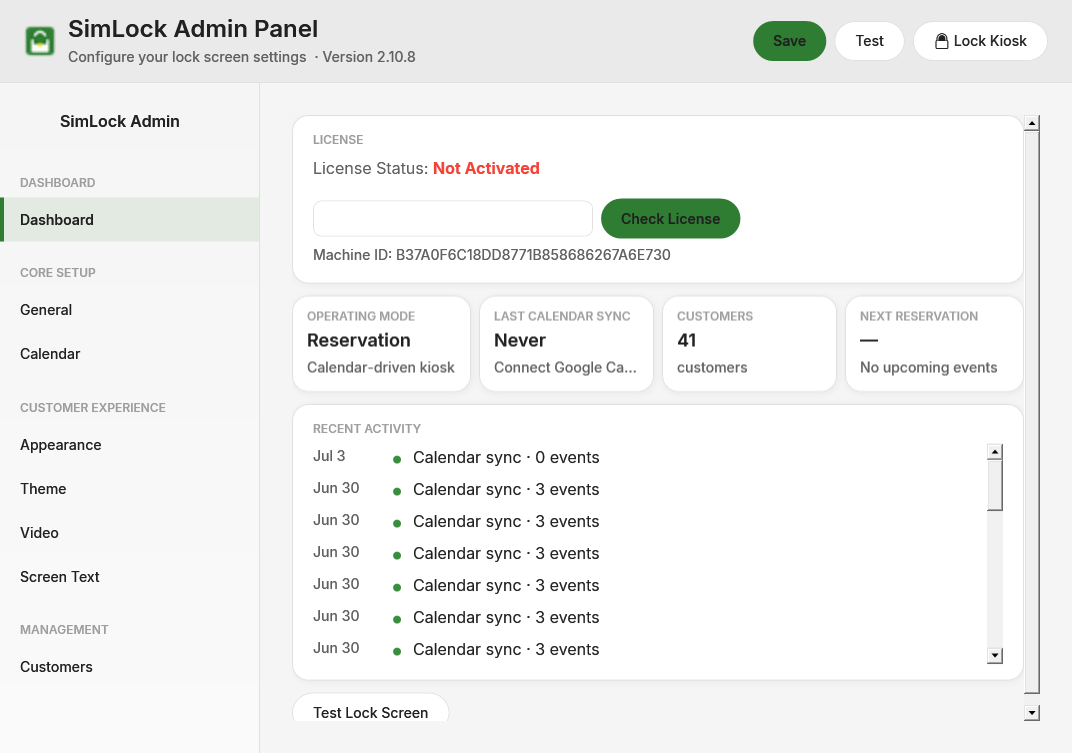 The Admin panel opens on the Dashboard. Pages are grouped down the left: Overview, Bookings, Simulator, Customer Experience, Look & Security.
Find your way round the Admin panel
| Group | Pages |
|---|---|
| Overview | Dashboard |
| Bookings (Reservation Mode only) | Google Calendar, Customers |
| Simulator | Launch & Uneekor, Kiosk Mode |
| Customer Experience | Lock Screen Text, Intro Video & Instructions, In-Session Help, Menu Buttons (PIN mode only) |
| Look & Security | Branding & Colours, Security, Backup |
Pages that do not apply to the current mode are hidden from the sidebar.
Understand what the lock screen blocks
While the lock screen is up, SimLock blocks the Windows key, Alt+Tab, Alt+F4, Alt+Esc and Ctrl+Esc. If you accepted the kiosk hardening options during install, the Ctrl+Alt+Del screen also loses Task Manager, Lock, Sign out, Switch user and Change password, the PC never sleeps on AC power, and Windows Update will not reboot while someone is signed in.
Staff can always get out. The Manager Override button in the top-right corner of the lock screen accepts the admin password and unlocks the kiosk until you relock it. See The lock screen, screen by screen.
Know where your data lives
All settings and data are in C:\ProgramData\SimLock:
| File or folder | Contents |
|---|---|
config.json |
Every setting from the Admin panel, including activation. The previous save is kept as config.json.bak |
customers.db |
The customer list, synced bookings and the activity log |
GoogleAuth\ |
The Google sign-in for Reservation Mode |
Videos\ |
The intro video and any instructions PDF |
Assets\ |
Logos and background pictures you upload |
launcher-health.log, launcher-restart.log |
Uneekor Launcher health checks and nightly restarts |
The admin password and unlock code are stored scrambled (hashed), never as readable text. The installer keeps this folder when you upgrade and asks whether to keep it when you uninstall.
What is new since 2.11
| Version | Change |
|---|---|
| 2.12 | A "getting ready" standby screen covers the simulator while it starts; SimLock checks the simulator really started |
| 2.13 | Export and import a bay's settings (Backup) |
| 2.14 | Optional Advanced Mode button: Uneekor VIEW and GSPro side by side |
| 2.15–2.16 | Nightly 4 AM Uneekor Launcher restart and an hourly Launcher health check |
| 2.17 | In-session help button (In-Session Help) |
| 2.18 | A licence the server rejects keeps working until its current token runs out, with a warning on the Dashboard |
| 2.19 | Uneekor VIEW + GSPro as a standard launch option |
| 2.20 | A Manager Override left on by mistake ends itself when the next booking starts |
| 2.22 | Admin password and unlock code stored as hashes; 5 wrong PINs pause the keypad for 30 seconds |
| 2.23 | Custom menu buttons only run what their type says |
| 2.24 | Launch fixes for Uneekor Launchers that only wait for GSPro; standby holds up to 60 seconds; intro video download fixed |
| 2.25 | Admin panel regrouped into the pages above, with plain-English captions; standby asks golfers to call for assistance when the launch monitor is off; the font picker works |