Start here · The lock screen, screen by screen
Start here
The lock screen, screen by screen
Every screen a golfer can meet on the kiosk, in order — including the standby screen, the call-for-assistance screen and the in-session help button.
The lock screen (SimLock.exe) is one full-screen window that swaps between screens depending on the operating mode. Labels below are the defaults; most can be changed on Lock Screen Text and Branding & Colours. The version number shows small in the bottom-right corner.
Activation Required (both modes)
Until the bay is activated, or once its licence can no longer be verified, every launch shows this screen.
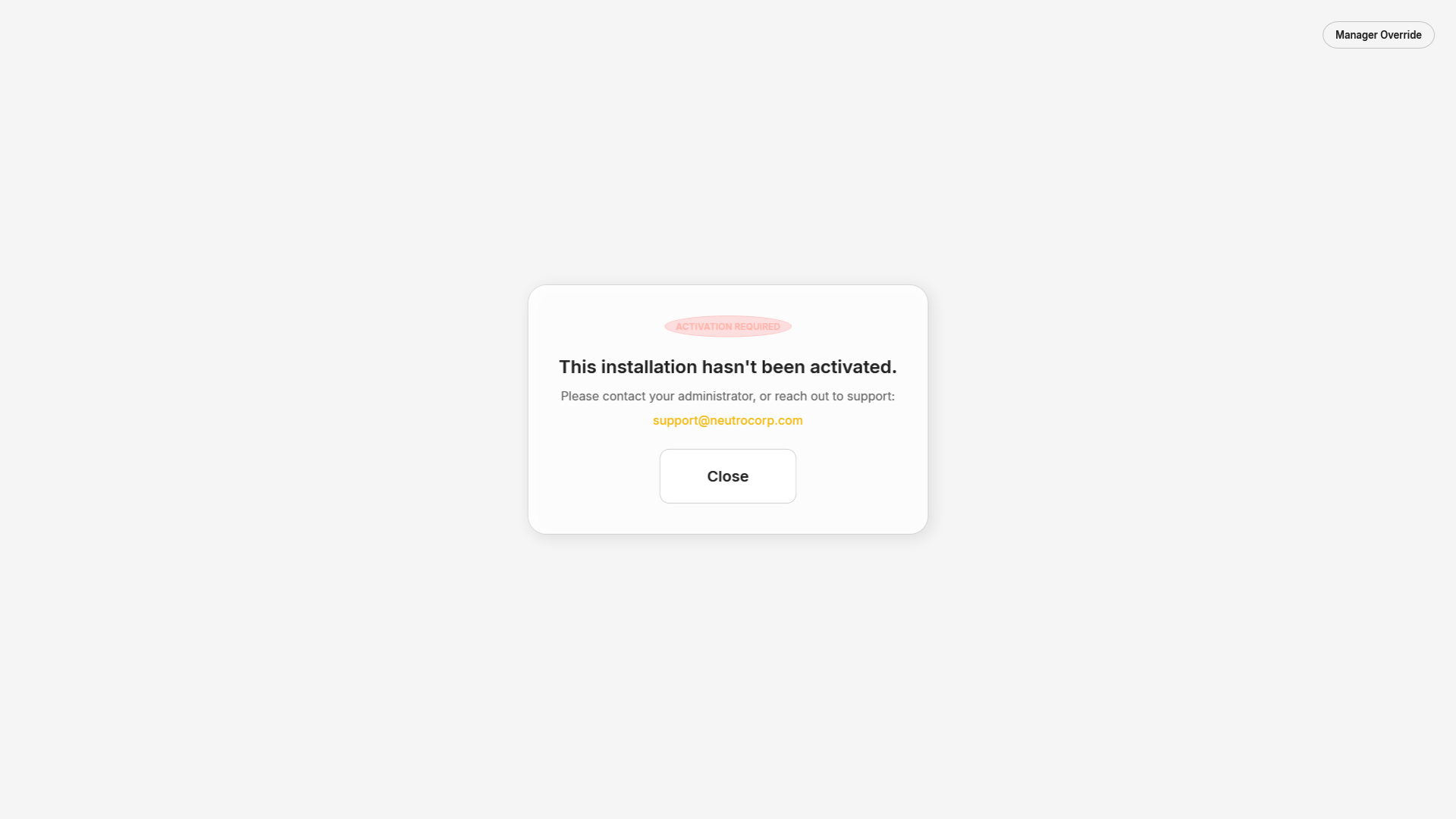 Shown until the licence is activated from the Admin Dashboard.
It explains what is wrong (for example "This installation hasn't been activated." or "The license verification has expired. Connect to the internet and relaunch.") and shows support@neutrocorp.com. Keyboard input is ignored. Close exits the lock screen. See Licensing & activation.
Manager Override (both modes)
A small Manager Override button sits in the top-right corner of every screen. Tapping it asks for the admin password, with Cancel and Unlock. Enter submits; Esc cancels.
- A wrong password shows "Incorrect password." and clears the box.
- The right password closes the lock screen and starts maintenance mode: hardening is relaxed and the Monitor stops bringing the lock screen back until you relock with Lock Kiosk in the Admin header or Launch Lock Screen in the tray menu.
- In Reservation Mode, an override that was already on when a booking starts ends by itself, so a forgotten override can no longer make the bay ignore its bookings. An override you start during a booking (to fix something for that golfer) is left alone.
Hide or rename the button on Security.
PIN mode
Splash
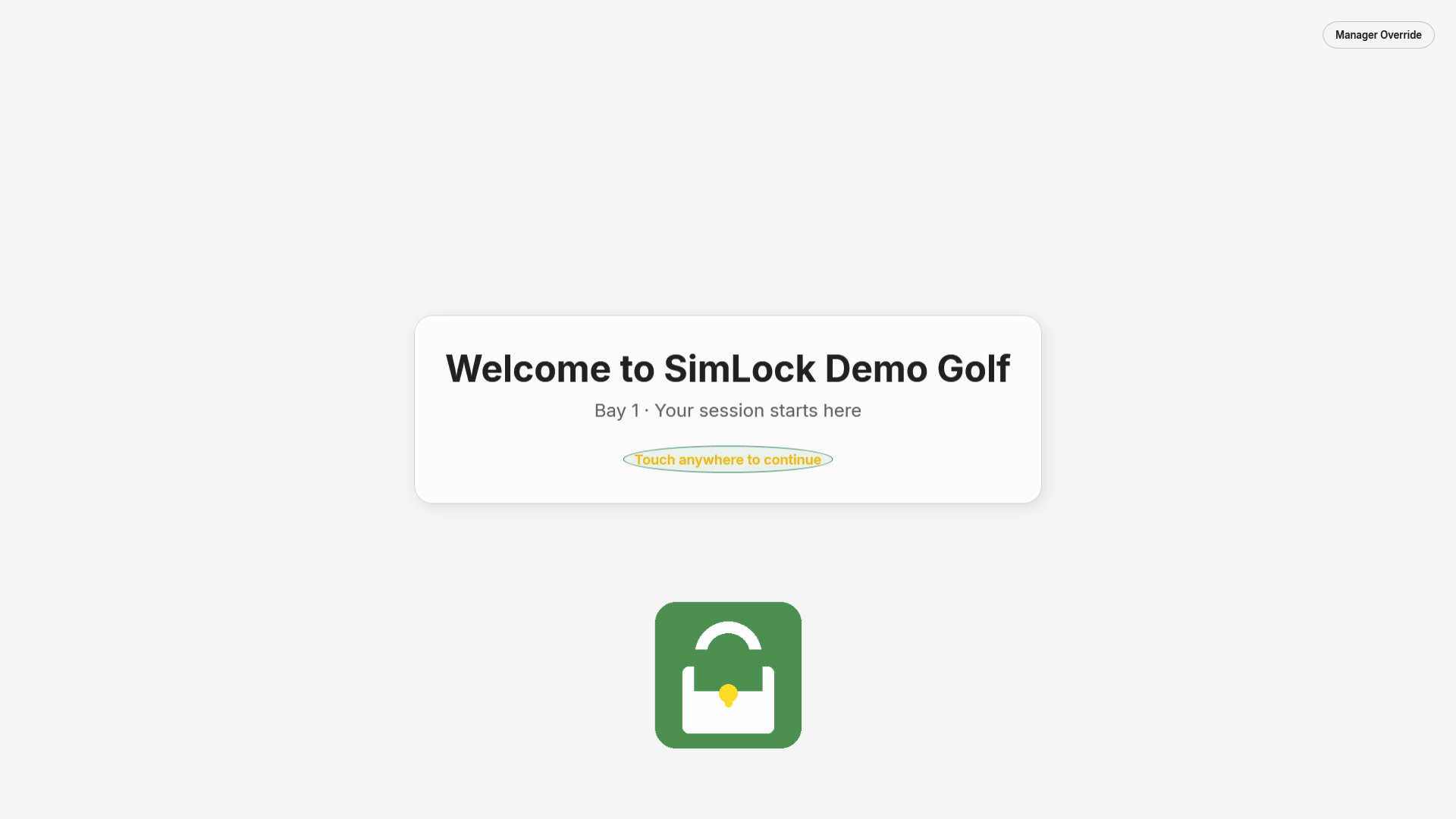 The splash screen. Default title "Welcome to SimWoods Golf".
Shows your splash title and subtitle, the hint "Touch anywhere to continue", your logo, and the optional custom message. Any tap, click or key press moves to the main menu.
Main menu
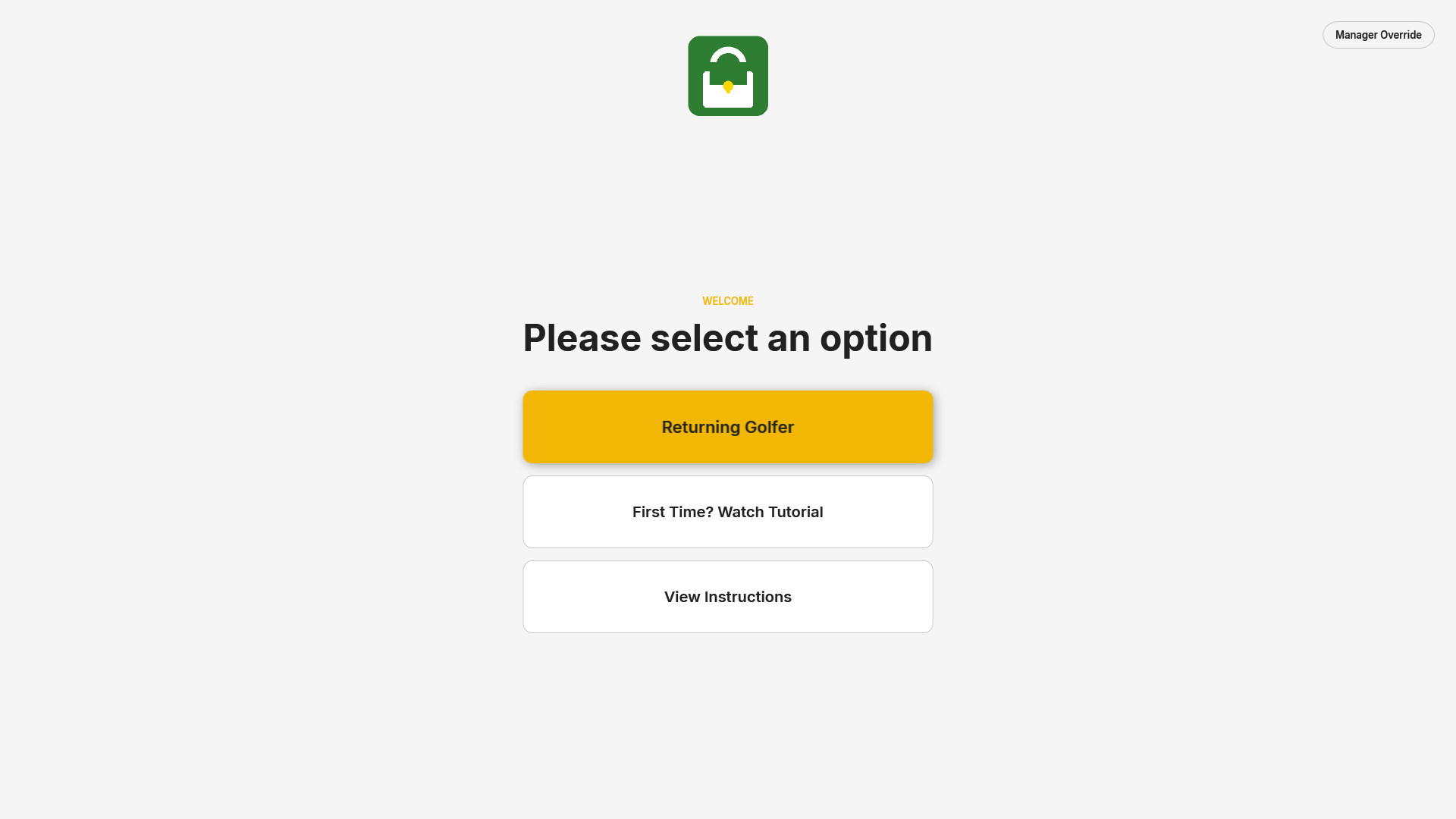 The main menu. Which buttons appear is set on Menu Buttons.
The heading reads "Please select an option". Up to five buttons can appear:
| Button | What it does |
|---|---|
| Returning Golfer | Opens PIN entry |
| First Time? Watch Tutorial | Plays the intro video, then unlocks |
| View Instructions | Opens the instructions screen (only when enabled on Intro Video & Instructions) |
| Custom buttons 1 and 2 | Your own label and action: start a program, open a website, play a video, open a PDF or picture. All but the video also unlock the kiosk |
PIN entry
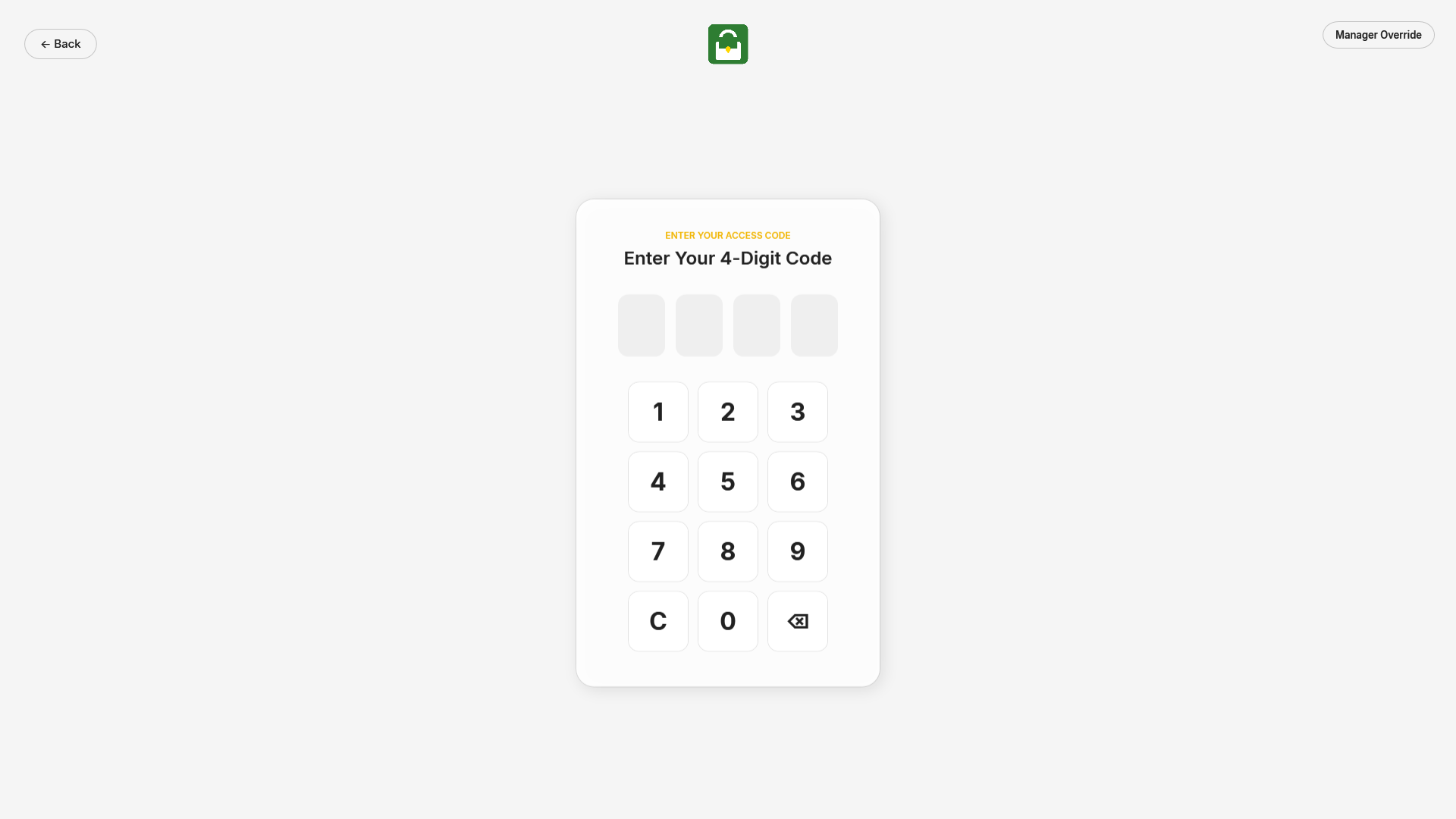 PIN entry. The title "Enter Your 4-Digit Code" is editable on Lock Screen Text.
The golfer types the 4-digit unlock code on the number pad or a keyboard. Digits show as asterisks; the code is checked when the fourth digit goes in.
- Correct: the lock screen closes.
- Wrong: "Incorrect PIN. Please try again." and the boxes clear.
- Five wrong codes in a row pause the keypad for 30 seconds ("Too many attempts. Try again in 30 seconds.").
- C clears all digits; ⌫ removes the last one. ← Back returns to the main menu.
Intro video
 The intro video plays full-screen with a countdown underneath.
The video plays from the start with a "Time Remaining" counter. There are no pause, skip or back controls. When it ends, the lock screen closes. If no video is set up, the file is missing, or playback fails, the lock screen unlocks straight away rather than trapping the golfer.
Instructions
 A web page or PDF shown full-screen with an auto-close countdown.
Shows the page or PDF set on Intro Video & Instructions. The bottom bar counts down ("Closing in 30s"). Close returns to the main menu early. Right-click menus, pop-ups and developer tools are disabled.
Reservation Mode
Here the lock screen is always running. Every two seconds it checks whether a booking for this bay is active and switches screens on its own.
Idle
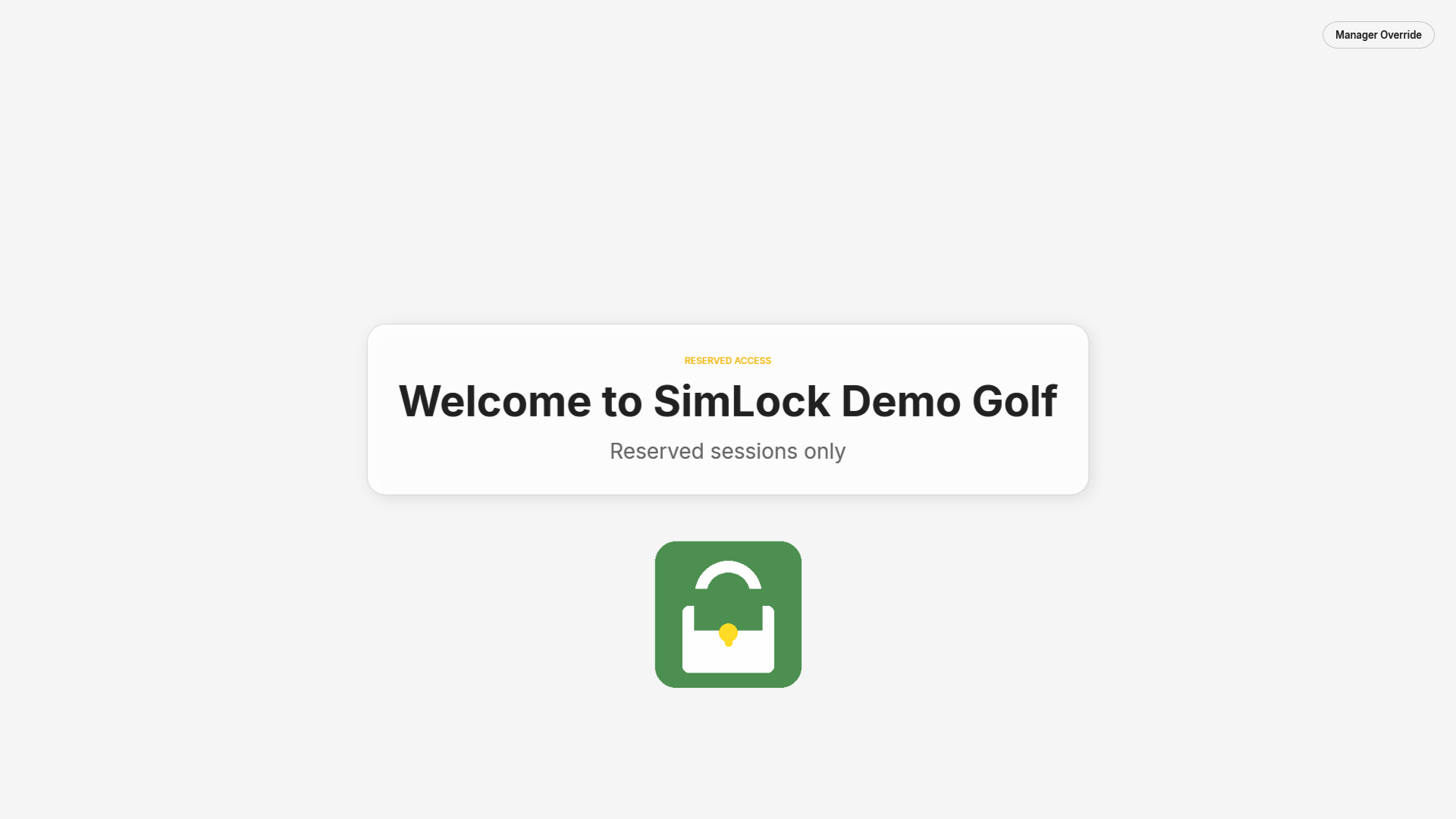 Shown whenever no booking is active.
Defaults: "RESERVED ACCESS", "Welcome", "Reserved sessions only". There is nothing to tap. If a walk-in taps the screen, the walk-in message ("Reserved sessions only — please contact staff") shows for three seconds.
Welcome
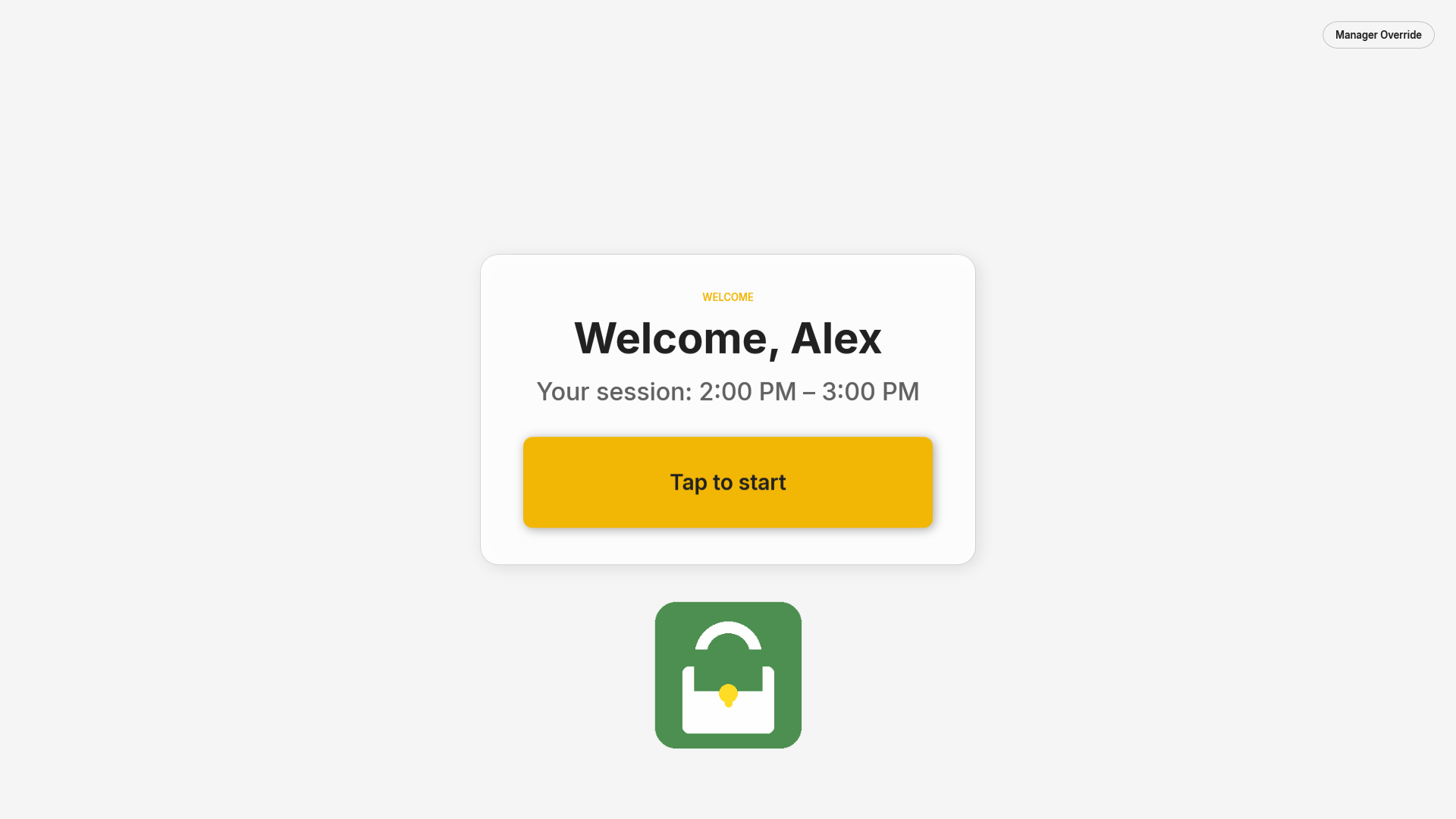 Appears the moment a booking for this bay becomes active.
The title and session line come from templates, by default "Welcome, {firstName}" and "Your session: {startTime} – {endTime}". The big button reads Tap to start. If you turned on Advanced Mode on Launch & Uneekor, a second Advanced Mode button underneath starts Uneekor VIEW and GSPro side by side.
Tapping a start button:
- Starts the simulator software in the background, as set on Launch & Uneekor.
- Records the visit in the customer list and marks the calendar event as arrived, so your other bays recognise the golfer too.
- Decides whether the golfer is new (not in the customer list, or zero visits) or returning.
A new golfer watches the intro video (when Play the intro video automatically for new customers is on) while the simulator loads behind it, and the lock screen hides when the video ends. A returning golfer goes to the standby screen.
If nobody taps Tap to start, the welcome screen stays until the booking ends or is cancelled, then returns to idle with no thank-you screen.
Standby ("Getting ready")
A returning golfer sees GETTING READY — Standby while we tee up your round — Loading your simulator… while the software starts, instead of a bare desktop. The screen:
- lets go 10 seconds after the simulator program appears, so GSPro's own window is up before the golfer sees the desktop;
- gives up after 60 seconds if the simulator never appears, and hands the bay to the golfer anyway, so a launch problem can never trap them behind the lock screen;
- is skipped when the launch option is Nothing or the simulator is already running.
Please call for assistance
With the Uneekor launch options, the Uneekor Launcher reports when the launch monitor is switched off or not connected ("Device Not Ready" on the tile). Releasing the golfer would not help — they could not hit a shot — so the standby screen changes to:
NEEDS ATTENTION — Please call for assistance — The launch monitor isn't ready. Once a staff member has switched it on, tap Try Again.
Switch the launch monitor on (check its power and cable or network), then tap Try Again: SimLock launches again and returns to the standby screen. The activity log records "Launch monitor not ready". See Troubleshooting.
During the session
The lock screen hides but keeps running: the system-key block stays on and the end time is watched. If you turned it on, a small Need help? button floats over the simulator for the whole session; see In-Session Help.
Session ended
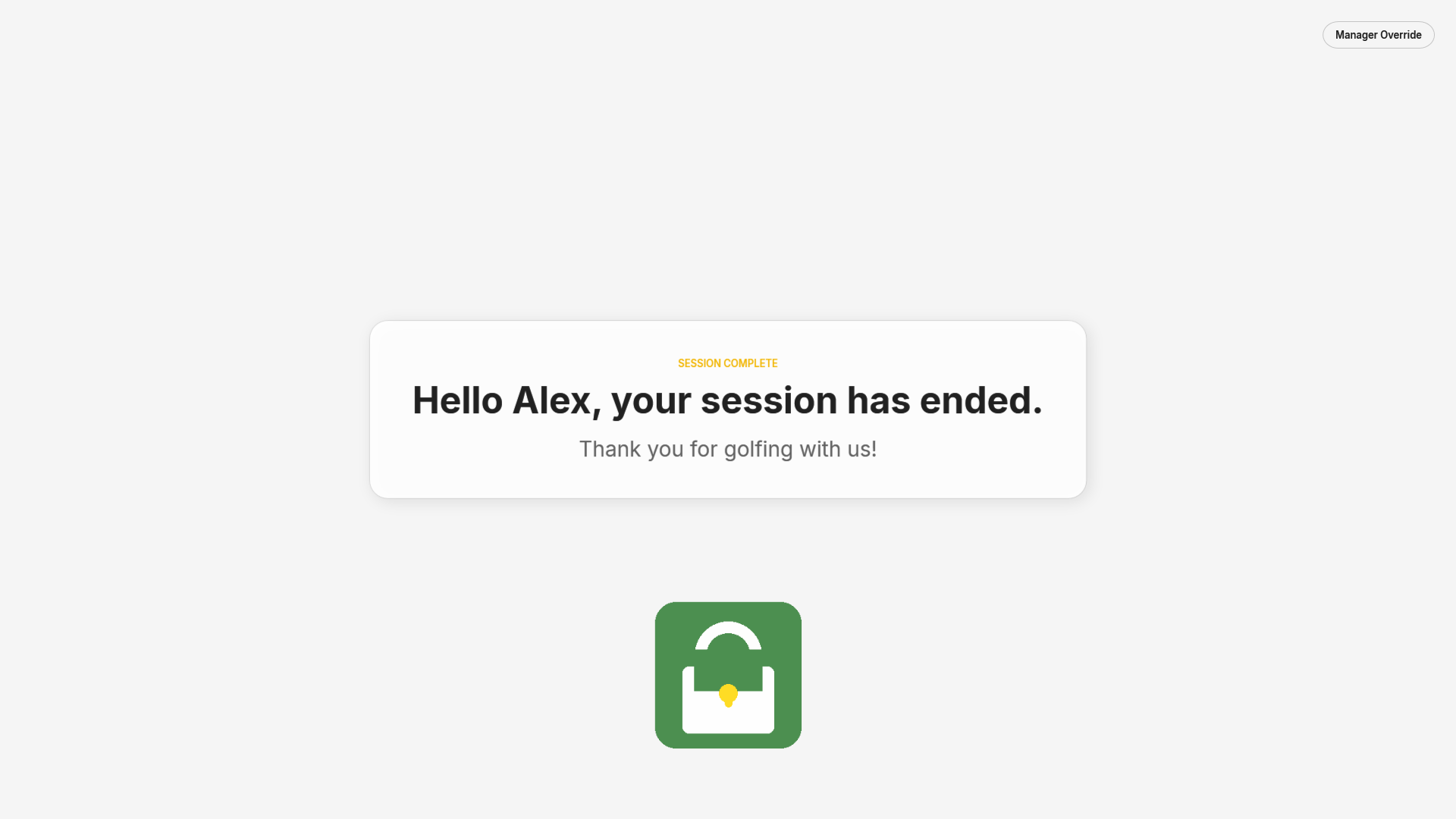 Shown for five seconds when a started session reaches its end time.
When a booking the golfer started ends, is cancelled, or is replaced by the next one, the lock screen returns with "Hello {firstName}, your session has ended." and "Thank you for golfing with us!". At the same moment SimLock stops the software it launched (see Launch & Uneekor) and closes the program named on Kiosk Mode (default gspro). After five seconds it moves on to the next golfer's welcome screen, or to idle.