Admin panel · Lock Screen Text
Admin panel
Lock Screen Text
Change the words and text sizes on the lock screen — the PIN screen and custom message in PIN mode, and the idle, welcome and session-ended screens in Reservation Mode.
"The words customers read on the lock screen, and how big they are." Click Save when you are done; a running lock screen picks up the change within about a second.
This page is in the Customer Experience group. What it shows depends on the mode chosen on Kiosk Mode. Colours are on Branding & Colours; the splash title and subtitle are there too, beside the splash pictures.
PIN mode
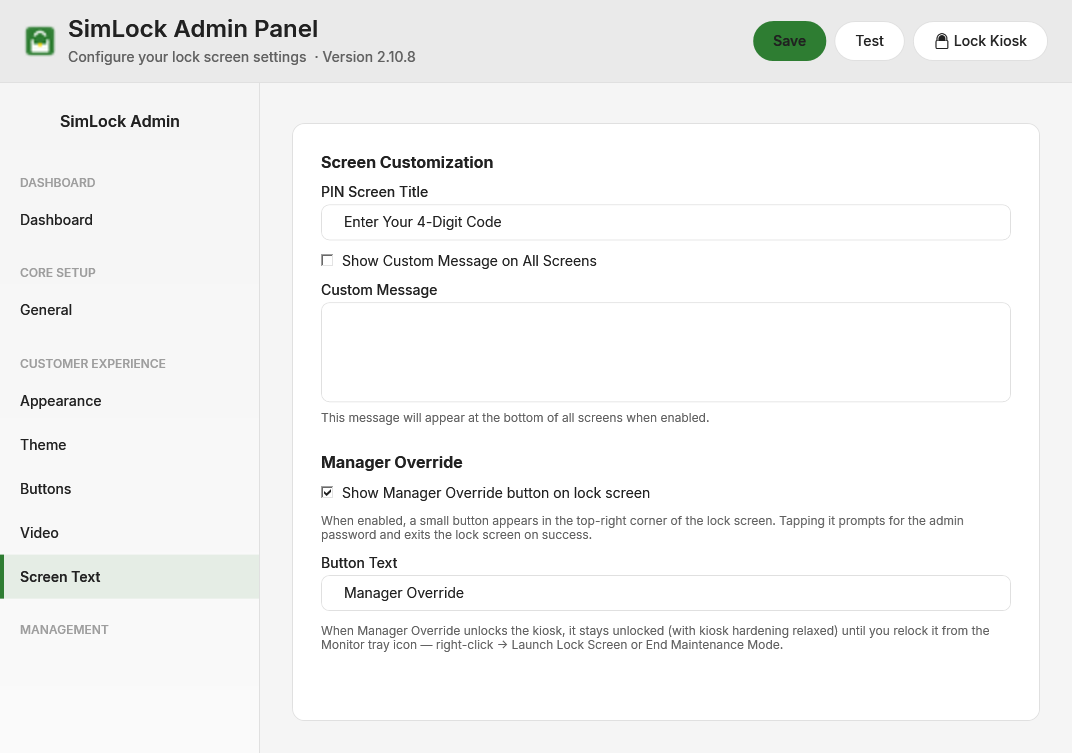 Lock Screen Text in PIN mode: the PIN screen title and the custom message.
| Setting | Default | What it does |
|---|---|---|
| PIN screen title | Enter Your 4-Digit Code | "The heading above the number pad." |
| Show a custom message on every screen | off | "Appears along the bottom of every lock screen — handy for opening hours or a promo." |
| Message | empty | The message itself. Line breaks are allowed. |
Reservation Mode
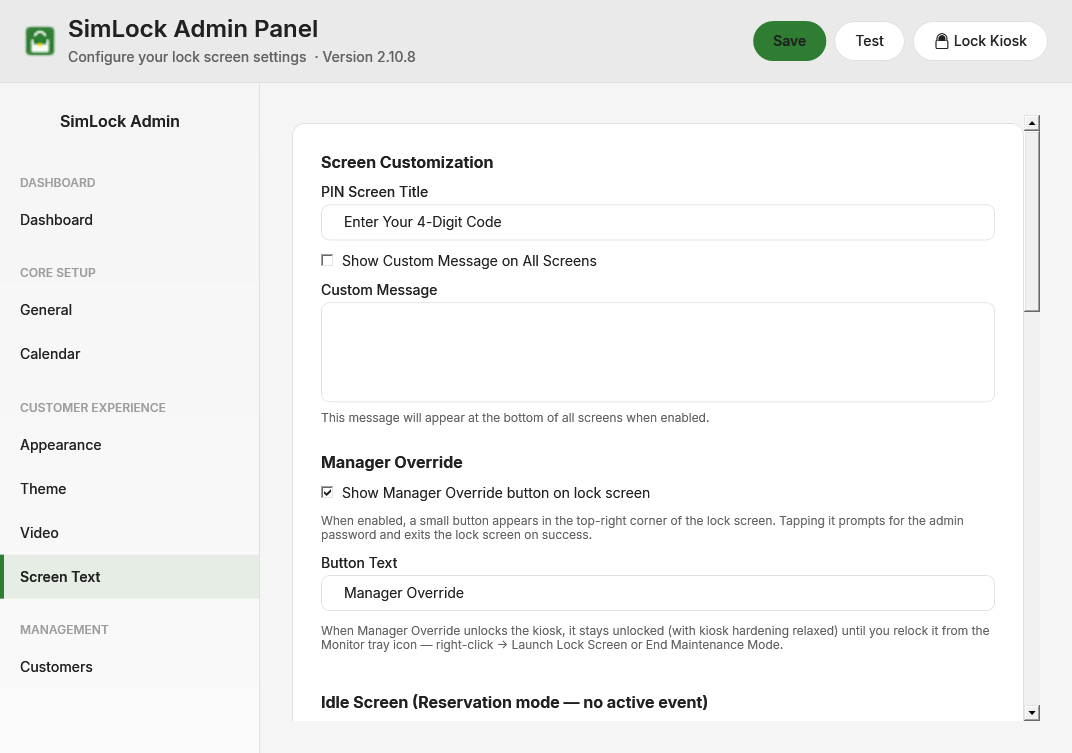 Idle, Welcome and Session ended sections appear in Reservation Mode.
Idle screen
"Shown when no booking is active on this bay. Its colours are on the Branding & Colours page."
| Setting | Default | What it does |
|---|---|---|
| Idle eyebrow (small text above the title) | RESERVED ACCESS | Small line above the title. |
| Idle title | Welcome | Main heading. |
| Idle title size | 56 px | Slider, 24 to 120. |
| Idle subtitle | Reserved sessions only | Line under the title. |
| Idle subtitle size | 28 px | Slider, 12 to 72. |
| Walk-in message | Reserved sessions only — please contact staff | "Pops up when someone taps the idle screen without a booking." Shows for three seconds. Leave empty to show nothing. |
Welcome screen
"Shown when a booking starts, until the customer taps Start."
| Setting | Default | What it does |
|---|---|---|
| Welcome title | Welcome, | Heading. Supports placeholders. |
| Welcome title size | 56 px | Slider, 24 to 120. |
| Session time line | Your session: {startTime} – {endTime} | Line under the heading. Supports placeholders. |
| Session time size | 32 px | Slider, 12 to 72. |
| Start button text | Tap to start | "The big button the customer taps to begin their session." If you blank it, the button still says "Tap to start". |
Session ended screen
"Shown when the booking's time is up" — for five seconds, and only if the golfer actually tapped Start. A no-show or cancellation goes straight back to idle.
| Setting | Default | What it does |
|---|---|---|
| Session ended title | Hello {firstName}, your session has ended. | Heading. Supports placeholders. |
| Session ended title size | 48 px | Slider, 24 to 120. |
| Session ended subtitle | Thank you for golfing with us! | Line under the heading. Supports placeholders. |
| Session ended subtitle size | 28 px | Slider, 12 to 72. |
Use placeholders
The welcome and session-ended lines replace these four placeholders. Anything else is shown as typed.
| Placeholder | Replaced with | Example |
|---|---|---|
{firstName} |
Golfer's first name | Jane |
{lastName} |
Golfer's last name | Smith |
{startTime} |
Booking start, bay's local time | 2:00 PM |
{endTime} |
Booking end, bay's local time | 3:00 PM |
Times always look like 9:30 AM. The name comes from the booking as described on Google Calendar. It is split on the first space, so "Jane Smith" gives Jane and Smith, and "Smith, Jane" is understood as last name first. If the booking has no name at all, both are empty, so "Welcome, {firstName}" shows as "Welcome, ".
Remove a location from names
If your booking system adds the location to the name ("Jane Smith Stratford"), add that word under Customer name cleanup on Google Calendar.
Fixed text
The small "WELCOME", "SESSION COMPLETE" and "GETTING READY" lines, the standby screen's wording and the "Please call for assistance" message are fixed and cannot be changed here.
Where the other text settings went
The Manager Override button's text is on Security. The splash title, subtitle and their sizes are on Branding & Colours. The idle text colours are on Branding & Colours too, with colour swatches.