Admin panel · Intro Video & Instructions
Admin panel
Intro Video & Instructions
Set up the intro video from a YouTube link or a local file, decide whether new customers watch it automatically, and add the optional full-screen instructions page.
"A how-to video for first-time customers, and an optional instructions page they can open from the menu."
This page is in the Customer Experience group and is shown in both modes.
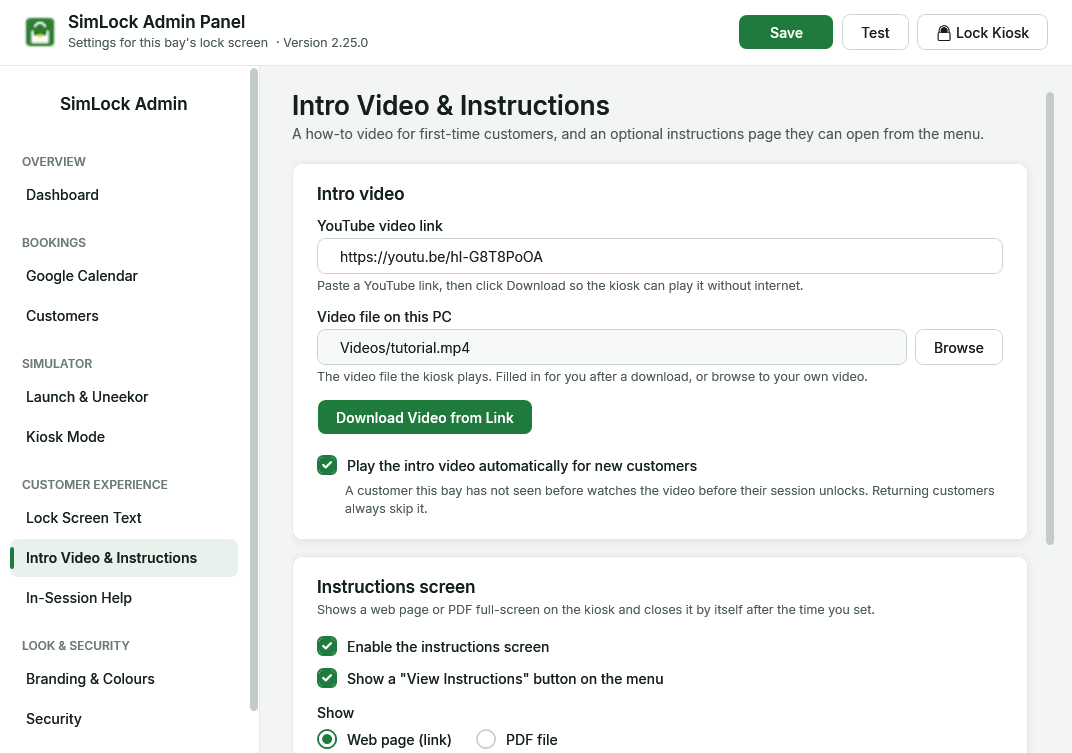 Intro video on top, Instructions screen below.
Choose the video
| Setting | Default | What it does |
|---|---|---|
| YouTube video link | a SimLock sample video | "Paste a YouTube link, then click Download so the kiosk can play it without internet." The bay never streams from this link. |
| Video file on this PC | Videos/tutorial.mp4 |
"The video file the kiosk plays. Filled in for you after a download, or browse to your own video." |
Both routes end in the same file: C:\ProgramData\SimLock\Videos\tutorial.mp4. Whichever you do last wins.
Use a file you already have
Click Browse and pick an .mp4, .avi, .mkv, .wmv or .mov file. SimLock copies it into place and fills in the box. Click Save.
Download from YouTube
- Paste the link into YouTube video link.
- Click Download Video from Link.
- Watch the status next to the button: "Downloading latest yt-dlp...", "Downloading ffmpeg..." and "Downloading Deno runtime..." (first time only), then "Downloading video..." with a percentage.
- When it says "Download complete!", the new file is already in use. Nothing else to click.
The bay needs internet for this. SimLock downloads three helper programs into C:\ProgramData\SimLock — yt-dlp.exe (every time), ffmpeg.exe and deno.exe (only if missing). Each is a fixed release whose checksum SimLock checks before running it, so a tampered or changed download is refused.
If the download fails
The status changes to "Download failed." and a window shows the error. Common causes are no internet on the bay, or a private or removed video. Versions 2.24.5 and earlier could not download FFmpeg at all; update to 2.24.6 or later. If an old ffmpeg.exe or deno.exe from an earlier version is in the folder, delete it so the checked version is fetched.
Decide who watches it
| Setting | Default | What it does |
|---|---|---|
| Play the intro video automatically for new customers | on | Reservation Mode. "A customer this bay has not seen before watches the video before their session unlocks. Returning customers always skip it." |
Where the video plays:
| Situation | What happens |
|---|---|
| PIN mode, golfer taps First Time? Watch Tutorial | The video plays; when it ends, the kiosk unlocks. The button can be hidden on Menu Buttons. |
| Reservation Mode, new golfer taps Start | The video plays while the simulator starts behind it; when it ends, the lock screen hides and the session begins. |
| A menu button set to Play Local Video | That file plays, then the menu returns. |
The screen shows your logo and a "Time Remaining" countdown. There is no skip button. If the file is missing or cannot be played, SimLock carries on as if the video had finished, so a golfer is never stuck.
 The video player with the time-remaining countdown.
Show an instructions page
"Shows a web page or PDF full-screen on the kiosk and closes it by itself after the time you set."
| Setting | Default | What it does |
|---|---|---|
| Enable the instructions screen | off | Turns the feature on. |
| Show a "View Instructions" button on the menu | off | Adds a View Instructions button to the PIN-mode menu. Needs the screen enabled too. |
| Show | Web page (link) | Web page (link) or PDF file. |
| Web page link | empty | The page to load. https:// is added if you leave it off. |
| PDF file | empty | Browse copies the PDF to C:\ProgramData\SimLock\Videos\instructions.pdf. |
| Close automatically after (seconds) | 30 | "At least 5 seconds." |
While the page is open the bay shows "Closing in 25s" and a Close button. Right-click menus, developer tools and pop-up windows are disabled.