Operations · Licensing & activation
Operations
Licensing & activation
How a SimLock licence is tied to a PC, how the bay keeps it verified (including offline and after a server rejection), and how to move a licence to a new machine.
Activate a licence
Activation happens on the Admin Dashboard, in the LICENSE card.
- Type the email address your licence was bought under into License email.
- Click Check License. The button reads Checking... while it works.
- On success, License status: changes to Activated in green, your email appears next to Verify and Deactivate buttons, and a line such as "Verified Oct 1, 2:41 PM · valid to Oct 8" shows that this PC holds a current licence token.
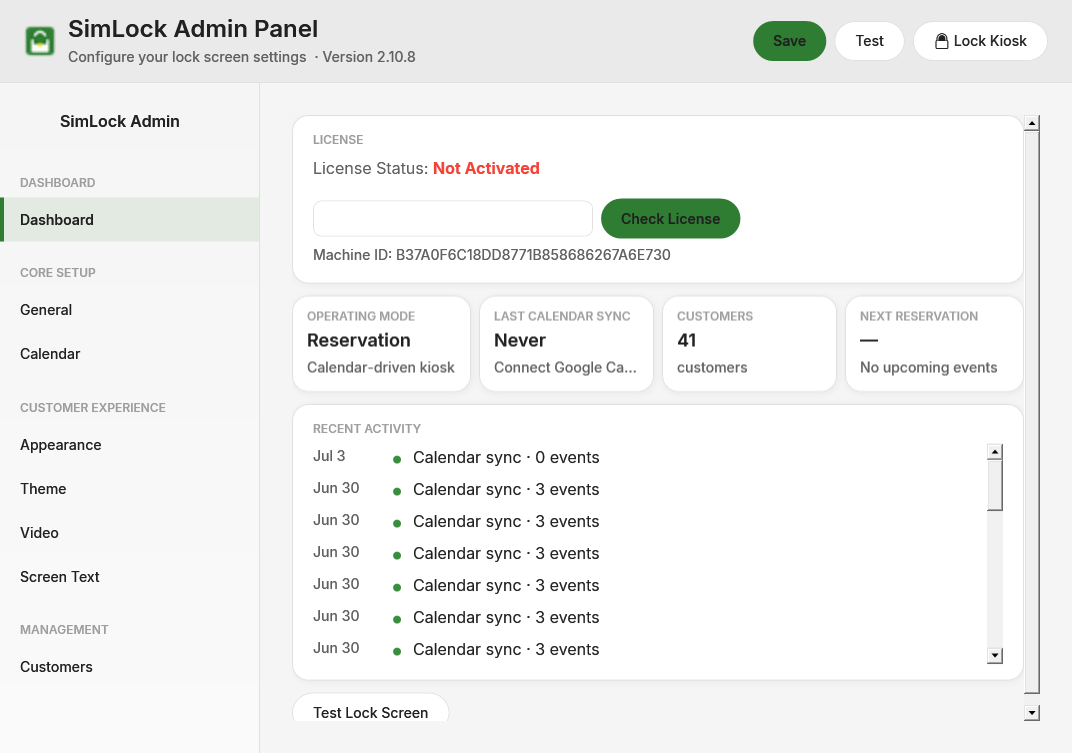 The LICENSE card on the Dashboard. The Machine ID is printed under it.
Behind the button, SimLock sends your email and this PC's Machine ID to simlock.golf over a verified secure connection. The server looks up the licences for that email. If one is already activated on this Machine ID, it confirms it. Otherwise it takes the first licence that has not expired: if it still has a free activation, it activates it for this PC; if not, it reports that all activations are used. You never type a licence key.
A licence allows a fixed number of activations. The standard licence allows one PC; each bay needs its own.
Messages you may see
| Message | Meaning |
|---|---|
Please enter a valid email |
The box is empty or has no @. |
No license found for this email. Please contact support@neutrocorp.com |
No licence exists for that address. Check the spelling and the address you bought with. |
All 1 activation(s) used. Deactivate a machine first. |
The licence is already active on another PC. See "Move a licence" below. |
All licenses for this email have expired |
Contact support. |
Network error: Unable to reach activation server. ... |
The PC cannot reach https://simlock.golf. Check the connection and try again. |
Connection timeout: Activation server did not respond. |
The server did not answer in time. Try again. |
What the Machine ID is
The Machine ID is a hardware fingerprint built from the CPU, motherboard, BIOS and first disk serial numbers, hashed so it reveals nothing about them. If none can be read it falls back to the computer name and Windows details.
Hardware changes change the ID
Replacing the motherboard, CPU or boot drive produces a new Machine ID, and the server then sees a different PC. Click Deactivate before the hardware swap, or contact support afterwards with the old and new Machine ID.
How the bay stays verified
The lock screen runs only while this PC holds a licence token — a short statement signed by simlock.golf saying "this Machine ID is activated", valid for 7 days. The bay fetches one when you activate and renews it quietly once a day. Editing config.json cannot create a token: only the server holds the signing key, and the lock screen checks the signature, the Machine ID and the expiry.
| Situation | Result |
|---|---|
| Token valid | Runs normally and renews in the background once a day. |
| No internet | Keeps working on its last token for up to 7 days, then shows ACTIVATION REQUIRED ("The license verification has expired. Connect to the internet and relaunch."). |
| Server rejects this PC (released, deactivated or disabled) | Keeps working on its current token, and the Dashboard shows a red LICENSE REJECTED since … line with the date the bay stops unlocking. When the token runs out the bay locks before the next booking — never in the middle of a golfer's session. |
| Token missing or expired, server reachable and the licence is fine | A new token is fetched on the spot and the bay runs normally. |
Click Verify on the Dashboard at any time to renew the token by hand. In Reservation Mode the licence is also checked before each booking's welcome screen, so a lock screen that runs for weeks without restarting still notices a change.
LICENSE REJECTED but you did not mean it
The usual cause is an activation released by mistake on the server. Click Deactivate, then activate again with Check License — or contact support with the bay's Machine ID. The bay keeps working until the date shown, so there is time to fix it.
PC clock
If the PC's clock jumps backwards by more than two hours, the activity log records license.clock_rollback. This is recorded only; it does not affect the licence. Keep the bay's clock on automatic time.
Activity log entries license.verified, license.offline and license.invalid show every check.
What the lock screen shows when not activated
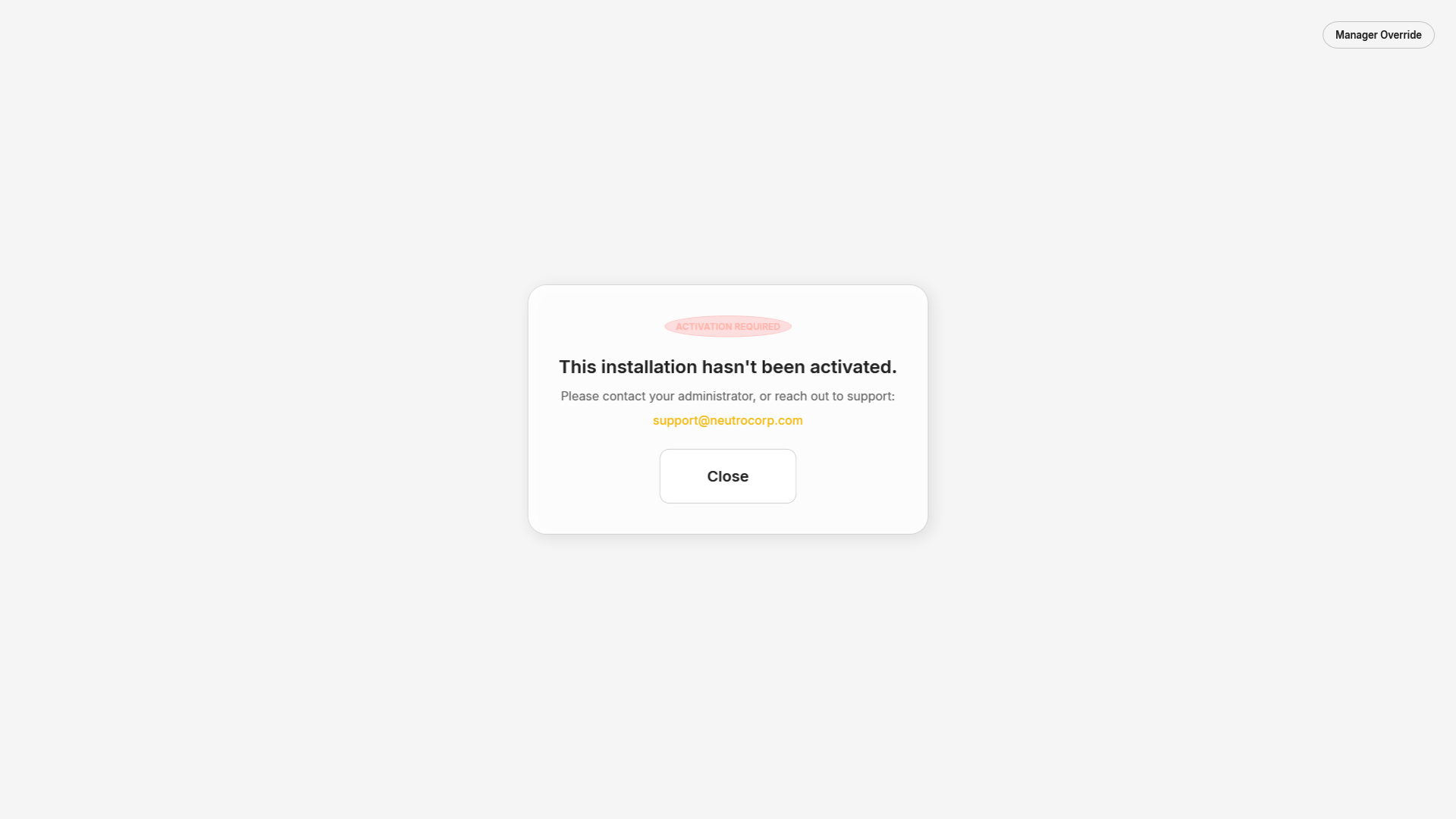 The lock screen on a PC that has not been activated.
The ACTIVATION REQUIRED screen explains the problem — for example "This installation hasn't been activated." or "The stored license belongs to a different PC. Activate this machine in SimLock Admin." — and gives support@neutrocorp.com. Keyboard input is blocked; Close exits the lock screen. Activate or verify from the Admin panel and launch the lock screen again.
Move a licence to a new PC
- On the old PC, open the Admin panel, go to Dashboard and click Deactivate.
- Confirm. The status reads Deactivated successfully, then Not Activated.
- Install SimLock on the new PC and click Check License with the same email. To bring the settings across, use Backup.
If the old PC is dead or gone, email support@neutrocorp.com with the licence email and, if you have it, the old Machine ID. Support can release the activation on the server.
Licence server address
SimLock talks to https://simlock.golf, stored as activationServerUrl in config.json. There is no field for it in the Admin panel; leave it alone unless support asks you to change it.