Admin panel · In-Session Help
Admin panel
In-Session Help
Turn on the help button golfers can tap during play, write the help menu in your own words, and choose which restart each entry runs.
"A help button the customer can tap during their session, while the simulator is on screen. It can restart stuck software for them."
This page is in the Customer Experience group and is shown in both modes. The help button arrived in 2.17; the one-tap menu in 2.24.
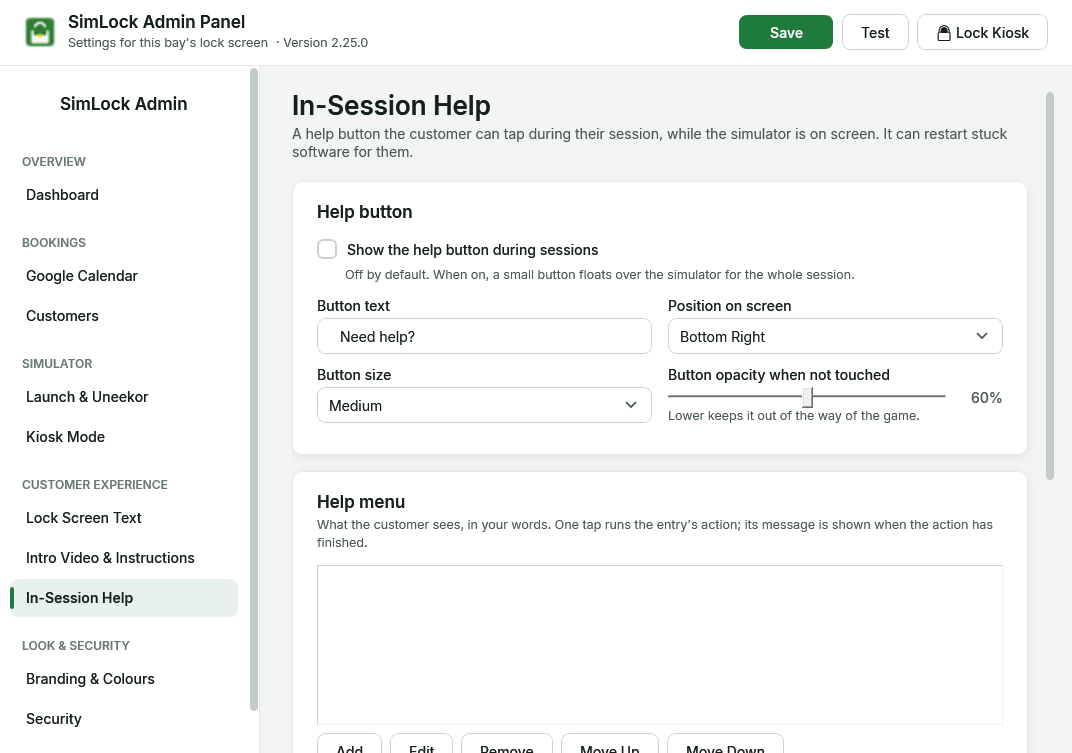 Help button settings at the top, the help menu editor below, then help & contact.
What the golfer sees
During a session — once the lock screen has hidden and the simulator is on screen — a small pill reading Need help? floats over the game. Tapping it opens How can we help? with your menu entries and, underneath, your help text and phone number.
- Tapping an entry runs it straight away. The golfer sees "Working on it…", then your message when it has worked (for example "GSPro has been restarted. You're good to play.").
- If it does not work, they read "We couldn't fix that automatically — please call your number." (or "please ask a member of staff" if you left the number empty).
- Every action has two minutes to finish; the golfer always gets an answer. They can hide the panel while it works.
The button never appears over the lock screen's own screens (welcome, standby, intro video, session ended, idle). In PIN mode it appears after the golfer unlocks and stays while the monitored program runs. Every tap is logged as support.action on the Dashboard.
Turn the button on
| Setting | Default | What it does |
|---|---|---|
| Show the help button during sessions | off | "Off by default. When on, a small button floats over the simulator for the whole session." |
| Button text | Need help? | The words on the pill. |
| Position on screen | Bottom Right | Bottom Right, Bottom Center, Bottom Left, Top Right, Top Center or Top Left. Pick a corner that does not cover GSPro's controls. |
| Button size | Medium | Small, Medium or Large. |
| Button opacity when not touched | 60% | "Lower keeps it out of the way of the game." 20% to 100%. |
Write the help menu
"What the customer sees, in your words. One tap runs the entry's action; its message is shown when the action has finished." Use Add, Edit, Remove, Move Up and Move Down. Each entry has:
- What the customer sees — your label, for example "Shots not reading" or "GSPro froze". Required.
- What it does — one of the fixed actions below.
- Message shown when it's done — leave blank for the standard message.
| Action | What it restarts | Works with launch option |
|---|---|---|
| Restart the GSPro connector | Only GSPconnect, the program that links GSPro to the launch monitor. The round stays open. The quickest fix for "shots not reading". | GSPro only, and all Uneekor options |
| Restart GSPro | GSPro. The current hole may be lost. | GSPro only, and all Uneekor options |
| Restart Uneekor VIEW | Uneekor VIEW and its helpers only; GSPro is left alone. | Uneekor options |
| Restart everything | Uneekor VIEW and the simulator, VIEW first. | Uneekor options |
| Show help / contact details | Nothing — shows your help text and phone number. | All, including Nothing |
The list of actions is fixed on purpose: this is a screen any customer can touch, so it can never run an arbitrary program. Restarts wait for the old program to close and check the new one really started before they report success. The connector is started from the path on Launch & Uneekor.
Entries that cannot work on this bay are hidden
With the launch option Nothing, SimLock does not know what software you run, so only Show help / contact details entries appear. If none of your entries apply, the menu shows a single Contact Support entry, so the golfer can always reach your phone number.
Add help and contact details
"Shown at the bottom of the help menu and by any "Show help" entry. The number is also given when an action fails."
| Setting | Default | What it does |
|---|---|---|
| Title | Need a hand? | Heading of the help text. |
| Message | empty | A short note, for example "Staff are at the front desk". |
| Phone / text number | empty | "The number customers should call or text when the help menu cannot fix the problem." Shown as "Call or text …". |