Admin panel · Appearance
Admin panel
Appearance
Set the splash screen text and sizes, add background images to the splash, menu and PIN screens, and upload your logo.
The Appearance tab controls what the lock screen looks like apart from colour. Colours and fonts are on the Theme tab. Sections appear in this order: Splash Screen, Menu Screen, PIN Entry Screen, Branding.
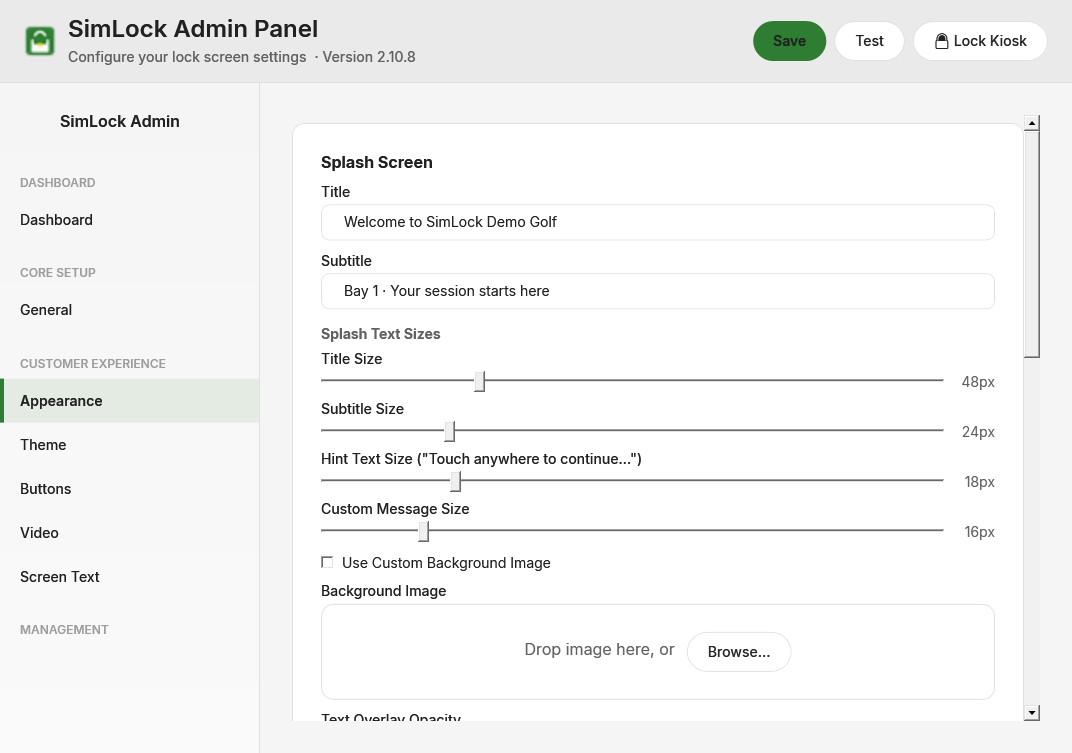 The Appearance tab in Process Monitor mode.
Click Save when you are done. A running lock screen reloads its text, images, logo and buttons within a second, so you can keep the kiosk up on a second monitor while you tweak.
Reservation mode hides most of this tab
The splash, menu and PIN screens only exist in Process Monitor mode, so the Splash Screen, Menu Screen and PIN Entry Screen sections are hidden in Reservation mode. Branding is always visible. Reservation screens are worded on Screen Text.
Choose an image
Every image on this tab uses the same drop zone. It reads Drop image here, or with a Browse… button. Drag a PNG, JPG, JPEG or BMP file onto it, or click Browse… and pick one.
SimLock copies the file into C:\ProgramData\SimLock\Assets\ (in a Backgrounds, Logos or Splash subfolder) and points the config at the copy, so you can delete the original or unplug the USB stick. The zone then shows a thumbnail, the file name and the full path, with Replace and Clear buttons.
Write the splash screen text
The splash screen is the first thing a golfer sees in Process Monitor mode.
| Setting | Default | What it does |
|---|---|---|
| Title | Welcome to SimWoods Golf |
Large heading in the centre of the splash screen. |
| Subtitle | Your Premium Golf Simulation Experience |
Line under the title. |
Splash Text Sizes
Each slider shows its value in pixels next to it.
| Setting | Range | Default | What it does |
|---|---|---|---|
| Title Size | 24–120 | 48 | Title font size. |
| Subtitle Size | 12–72 | 24 | Subtitle font size. |
| Hint Text Size ("Touch anywhere to continue...") | 10–48 | 18 | The hint pill under the subtitle. |
| Custom Message Size | 10–48 | 16 | The optional message at the bottom of every screen. The message itself is on Screen Text. |
Put a background behind the splash screen
| Setting | Default | What it does |
|---|---|---|
| Use Custom Background Image | off | Shows the image below full-screen behind the splash text. |
| Background Image | none | The image. Only used when the checkbox is on. |
| Text Overlay Opacity | 85% | Opacity of the panel behind the title and subtitle, 0% to 100%. 0% makes the panel invisible so text sits straight on the image. |
| Text Overlay Color | blank | Colour of that panel. Leave blank to use the Panel & Keypad Background colour from the Theme tab. Type Transparent to remove the panel entirely. Click the swatch to pick a colour. |
When the checkbox is off, the splash screen uses the Splash Screen Background colour from the Theme tab if one is set, otherwise the window background.
Image does not appear
Both the checkbox and the image are needed. If the file has been moved or deleted since you chose it, the lock screen silently falls back to the window background (not the Splash Screen Background colour). Re-pick the file with Replace.
Put a background behind the menu and PIN screens
The Menu Screen and PIN Entry Screen sections work the same way, without an overlay.
| Setting | Default | What it does |
|---|---|---|
| Use Custom Menu Background Image | off | Full-screen image behind the main menu buttons. |
| Menu Background Image | none | The image. |
| Use Custom PIN Screen Background Image | off | Full-screen image behind the keypad. |
| PIN Screen Background Image | none | The image. |
With the checkbox off, each screen uses its Main Menu Background or PIN Entry Background colour from the Theme tab, or the window background when that is blank.
Upload your logo
Branding applies in both modes.
| Setting | Default | What it does |
|---|---|---|
| Logo Image | Assets/logo.png (the SimLock logo) |
Shown as a backdrop on the Splash, Idle, Welcome and Session Ended screens, and inline on the Menu, PIN and Video screens. |
| Lock Screen Logo Size (backdrop on Splash / Idle / Welcome / Session Ended) | 220 px | Height of the backdrop logo, 80 to 600 px. The inline logos are not affected. |
| Splash Logo (optional) | Assets/splash.png |
Stored in the config for an optional splash image. The current lock screen does not display it; use Logo Image for your branding. |
A PNG with a transparent background looks best as a backdrop. Very wide logos are scaled by height, so a 600 px setting on a wide banner can run off the edge on a 1080p screen.