Admin panel · Video
Admin panel
Video
Set up the tutorial video from a YouTube link or a local file, and the optional full-screen instructions page.
The Video tab holds the tutorial video that first-time golfers watch, plus the optional Instructions Screen.
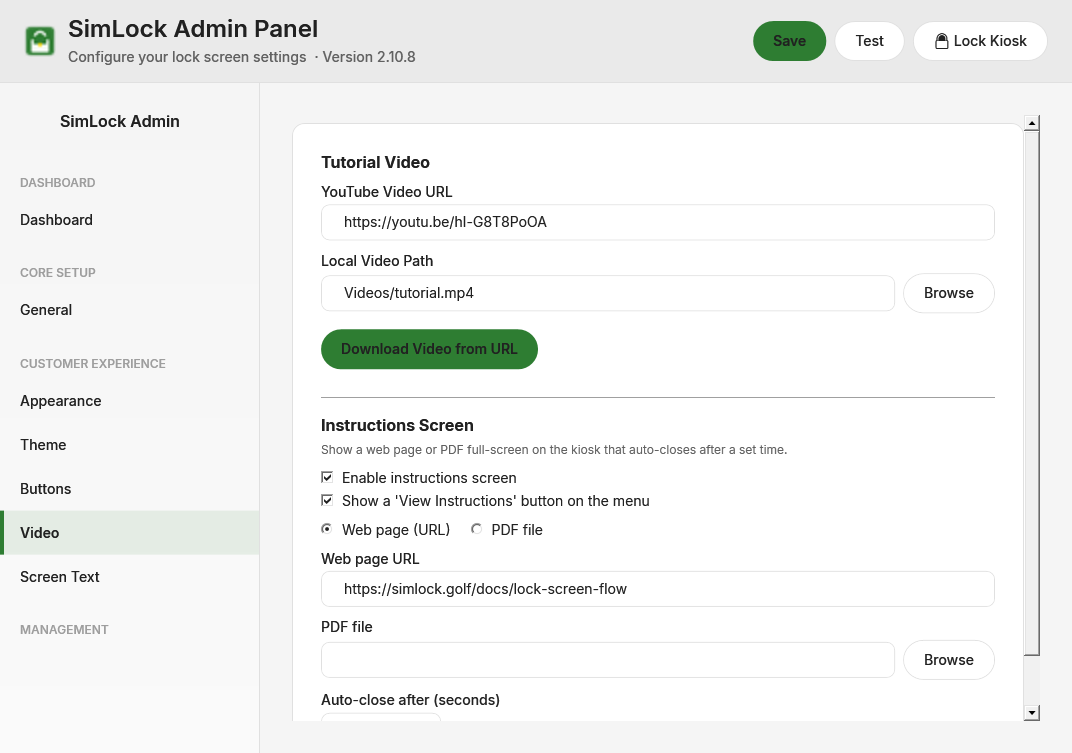 The Video tab: tutorial video source on top, Instructions Screen below.
Choose where the video comes from
| Setting | Default | What it does |
|---|---|---|
| YouTube Video URL | a SimLock sample video | The link that Download Video from URL fetches. The kiosk never streams from this URL; it only plays the downloaded file. |
| Local Video Path | Videos/tutorial.mp4 |
The file the lock screen plays. Read-only; set it with Browse or the download button. |
Both routes end in the same place: C:\ProgramData\SimLock\Videos\tutorial.mp4. Whichever you do last wins.
Use a file you already have
Click Browse and pick an .mp4, .avi, .mkv, .wmv or .mov file. SimLock copies it to Videos\tutorial.mp4 and fills in Local Video Path. Click Save.
Download from YouTube
- Paste the link into YouTube Video URL.
- Click Download Video from URL.
- Watch the status text next to the button. A thin progress bar appears while work is in progress.
- When it says "Download complete!", the path is already saved to the configuration. Nothing else to click.
The download needs internet access on the kiosk. On the first run SimLock fetches three helper programs into C:\ProgramData\SimLock: yt-dlp.exe (re-downloaded to the latest version on every download), ffmpeg.exe and deno.exe (downloaded only if missing). The status text walks through "Downloading latest yt-dlp...", "Downloading ffmpeg...", "Downloading Deno runtime...", then "Downloading video..." with a percentage and "Merging video and audio...".
The result is an MP4 with H.264 video where YouTube offers it, which is what the lock screen's player handles best.
If the download fails
The status changes to "Download failed." and a dialog shows the exit code and error lines from yt-dlp. Common causes are no internet on the kiosk, a private or removed video, or an outdated helper. Run the download again; yt-dlp is refreshed each time.
One download at a time
Clicking the button while a download is running shows "Download already in progress." Wait for it to finish.
When the video plays
| Situation | What happens |
|---|---|
| Process-monitor mode, golfer taps First Time? Watch Tutorial on the menu | The video plays. When it ends, the kiosk unlocks. The button can be hidden on the Buttons tab. |
| Reservation mode, new golfer taps the start button | The video plays if Auto-play tutorial video for new customers in reservation mode is ticked on the Customers tab. When it ends, the lock screen hides and the session begins. Returning golfers skip it. |
| A custom button with the Play Local Video action | That file plays, then the menu returns. |
During playback the screen shows your logo and a "Time Remaining: 3:42" countdown that updates every second. There is no skip or close button; the video runs to the end.
 The video player screen with the time-remaining countdown.
If the file is missing or cannot be played, SimLock does not trap the golfer: it continues exactly as if the video had finished. Check Local Video Path if golfers report the tutorial never appears.
Show an instructions page
The Instructions Screen shows a web page or PDF full-screen on the kiosk and closes itself after a set time. It is separate from the tutorial video.
| Setting | Default | What it does |
|---|---|---|
| Enable instructions screen | off | Turns the feature on. |
| Show a 'View Instructions' button on the menu | off | Adds a View Instructions button to the menu screen. Needs the feature enabled too. |
| Web page (URL) / PDF file | Web page | Which kind of content to show. |
| Web page URL | empty | The page to load. https:// is added if you leave it off. |
| PDF file | empty | Browse copies the PDF to C:\ProgramData\SimLock\Videos\instructions.pdf. |
| Auto-close after (seconds) | 30 | Countdown before the page closes. Values under 5 are ignored. |
While the page is open the kiosk shows "Closing in 25s" and a Close button. Right-click menus, developer tools and pop-up windows are disabled. If the URL or PDF is missing, the button simply returns to the menu.