Admin panel · Theme
Admin panel
Theme
Change the lock screen's button, background and text colours and its font, and see the change on the kiosk the moment you save.
The Theme tab sets the colours and font for every lock screen. It applies in both operating modes. Sections appear in this order: Buttons, Backgrounds, Text, then the Reset to Default and Preview Colors buttons.
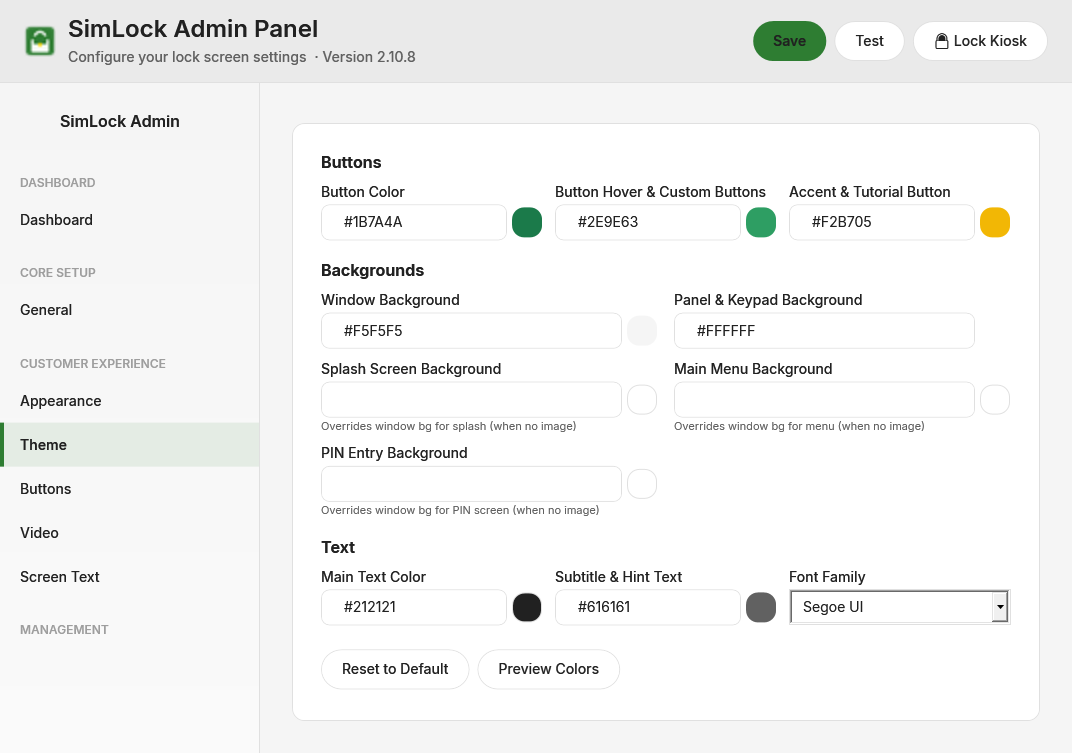 The Theme tab with the default light palette.
Enter a colour
Every colour field is a text box with a round swatch next to it. You can:
- Type a hex value such as
#2E7D32(six digits, with the leading#). - Click the swatch to open the Windows colour dialog, pick a colour and click OK. SimLock writes the hex value into the box for you.
Preview Colors refreshes all the swatches from what is typed in the boxes. A value SimLock cannot parse shows a grey swatch, and the lock screen paints grey for it too, so fix any grey swatch before you save.
Colour the buttons
| Setting | Default | What it does |
|---|---|---|
| Button Color | #2E7D32 |
Despite the label, the current lock screen uses it only for thin outlines: the "Touch anywhere to continue" pill and the walk-in toast border. |
| Button Hover & Custom Buttons | #4CAF50 |
Saved, but not used by the current lock screen. Hover is a fixed opacity change, and custom buttons use the Panel & Keypad Background colour. |
| Accent & Tutorial Button | #FFC107 |
Fill of the primary buttons (Returning Golfer and the reservation start button), the "Touch anywhere to continue" hint text and the small eyebrow labels. The tutorial, instructions and custom buttons use Panel & Keypad Background instead. |
Colour the backgrounds
| Setting | Default | What it does |
|---|---|---|
| Window Background | #F5F5F5 |
Base colour behind every screen. |
| Panel & Keypad Background | #FFFFFF |
Cards, the keypad, the secondary menu buttons (tutorial, instructions, custom), and the splash text overlay when no Text Overlay Color is set on the Appearance tab. |
| Splash Screen Background | blank | Overrides the window background on the splash screen when no background image is in use. |
| Main Menu Background | blank | Same for the main menu. |
| PIN Entry Background | blank | Same for the PIN keypad screen. |
Leave the three per-screen fields blank to use Window Background everywhere. A background image chosen on the Appearance tab always wins over these colours.
Colour the text and pick a font
| Setting | Default | What it does |
|---|---|---|
| Main Text Color | #212121 |
Titles and body text. |
| Subtitle & Hint Text | #616161 |
Subtitles, hints and small labels. |
| Font Family | Segoe UI |
Font for every lock screen. Choose from Segoe UI, Arial, Verdana, Calibri, Tahoma, Trebuchet MS, Georgia, Times New Roman, Consolas, Roboto, Open Sans or Montserrat. |
The font has to be installed on the kiosk PC. If Windows cannot find it, the lock screen keeps its default font. Segoe UI, Arial, Verdana, Calibri, Tahoma, Trebuchet MS, Georgia, Times New Roman and Consolas ship with Windows; Roboto, Open Sans and Montserrat usually need installing first.
Error colour
The red used for error messages (#D32F2F) is part of the theme but has no field on this tab. It stays at its default.
Reset the theme
Reset to Default puts the default light palette back into every field on this tab and also clears the three per-screen backgrounds and the Text Overlay Color on the Appearance tab. It only changes the boxes; click Save to apply it.
See the change on the kiosk
You do not need to restart the lock screen. When you click Save:
- The Admin panel writes the config file atomically (a temporary file is written, then swapped in).
- The running lock screen watches that file. Within about half a second of the last change it reloads the config, re-applies the theme, resets every screen background and reloads images, screen text and button visibility.
So keep the lock screen running on the bay's screen, or launch it with Test in the header, and adjust until it looks right. The Admin panel itself keeps its own fixed light look; the theme only affects the lock screen.
Upgraded from an old version and the text is white on white?
Versions before 2.6.6 used a dark green theme by default. If your config still has exactly that old palette, SimLock moves it to the light palette automatically on load. A dark palette you customised yourself is left alone; use Reset to Default if you want the light look.
Check contrast on the real screen
Simulator bays are usually dim, and projector or TV colours rarely match a monitor. After saving, walk over to the bay and confirm:
- Main text reads clearly on both the window and panel backgrounds.
- The Accent & Tutorial Button colour stands out from Panel & Keypad Background so golfers can tell the primary button from the secondary ones.
- Any custom Text Overlay Color on the splash screen still leaves the title readable at your chosen opacity.