Admin panel · Calendar & reservation mode
Admin panel
Calendar & reservation mode
Connect Google, pick the calendar that drives this bay, sync bookings, and understand how a booking becomes a golfer on the lock screen.
The Calendar tab only appears when Operating Mode on the General tab is set to Reservation. In this mode the kiosk stays locked until a booking on your bay's Google Calendar is active, then greets the golfer by name.
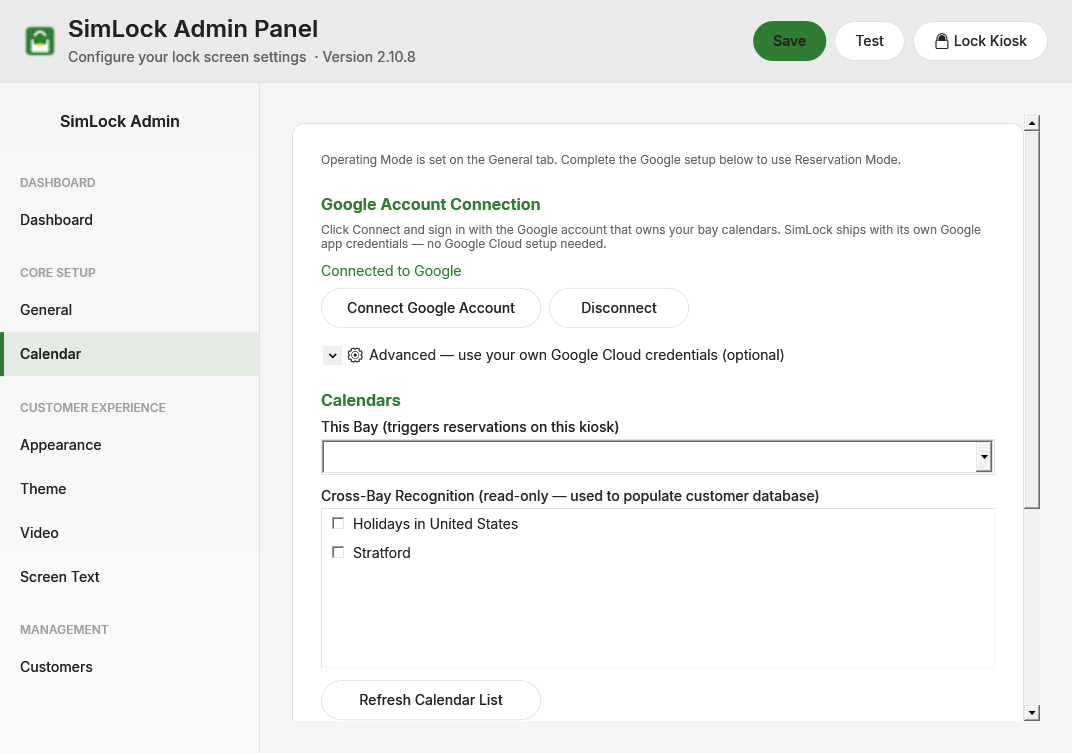 The Calendar tab: Google connection on top, calendar picks, name cleanup and manual sync below.
Connect your Google account
- Click Connect Google Account. A browser window opens.
- Sign in with the Google account that owns your bay calendars and grant calendar access.
- Back in the Admin panel you get "Connected. Found N calendars." and the status line changes to Connected to Google.
SimLock ships with its own Google app credentials, so there is no Google Cloud setup. The sign-in tokens are stored on the kiosk under C:\ProgramData\SimLock\GoogleAuth; you do not sign in again on later launches.
Disconnect deletes those tokens after a confirmation. Reservation mode stops working until you reconnect.
Google's 'unverified app' warning
If Google shows "Google hasn't verified this app", click Advanced, then continue to SimLock Kiosk. The data only moves between your kiosk and Google.
Use your own Google Cloud credentials (optional)
Expand Advanced — use your own Google Cloud credentials (optional). When both Client ID and Client Secret are filled in, they replace SimLock's built-in credentials the next time you click Connect. The expander contains a five-step wizard with buttons that open the exact Google Cloud pages. Leave both boxes empty unless your facility requires its own OAuth client.
Choose your calendars
| Setting | Default | What it does |
|---|---|---|
| This Bay (triggers reservations on this kiosk) | none | The one calendar whose bookings lock and unlock this kiosk. |
| Cross-Bay Recognition | none checked | Other bays' calendars. Their bookings are read only to build the customer list, so a golfer who first visited another bay counts as returning here. |
| Refresh Calendar List | - | Reloads the calendar list from Google without reconnecting. |
Click Save after changing either list.
Set This Bay or nothing will unlock
If This Bay is blank, the kiosk never unlocks for a booking, even with cross-bay calendars checked. Catch Up Now still reports "ok · N events" because it synced customers from the checked calendars, and it shows a "This Bay not selected" warning first. If sync looks fine but the kiosk stays on the idle screen, check this dropdown before anything else.
Sync bookings
The SimLock Monitor polls Google automatically while the kiosk runs. The lock screen checks every 2 seconds whether a booking on This Bay is active, and the Monitor checks every 10 seconds that the lock screen is running for an active booking. The polling window is set in C:\ProgramData\SimLock\config.json; these values have no Admin panel control.
| Setting | Default | What it does |
|---|---|---|
calendarPollIntervalSeconds |
30 | Seconds between calendar polls (minimum 5). |
calendarPollLookbackHours |
24 | How far back each poll looks. |
calendarPollLookaheadDays |
7 | How far ahead each poll looks. |
To pull in older history, use Manual Sync: pick Look back (1 week, 1 month or 3 months; default 1 month) and click Catch Up Now. The status line below shows the last result, for example "Last sync: 2026-08-22 14:05:11 · ok · 12 events".
Status values you may see:
- ok - every selected calendar was read.
- partial: 1/3 calendars failed — ... - some calendars failed; their events were left untouched.
- error: all calendars failed — ... - every selected calendar failed to load; nothing was changed.
- error: no calendars selected - nothing is picked in either list.
- error: not connected - tokens are missing or expired. Reconnect.
- error: no Google credentials - no built-in or operator credentials are available.
Bookings deleted or cancelled in Google are removed on the next poll. Events that ended more than an hour ago are pruned.
How a booking becomes a golfer
For each event in the window, SimLock builds a name, email and phone in this order:
- The first attendee who is not the organizer and has an email address (display name and email).
- Lines in the event description such as
Customer: Jane Smith,Name:,Email:andPhone:. This is how RoundBook and similar booking systems pass the customer. - If there is still no name, the event title, minus leading time or "Reservation -" style prefixes and trailing "Bay N" tags.
All-day and cancelled events are skipped. Words listed under Customer Name Cleanup are removed from the name before it is used anywhere (see Customers).
When the golfer taps the start button, SimLock looks the booking up in the customer database by email first, then phone plus name, then name alone. A match with one or more visits is a returning golfer; anything else is new, and new golfers see the tutorial video if Auto-play tutorial video for new customers in reservation mode is ticked on the Customers tab. The visit count goes up by one, and a private simlock_arrived marker is written to the Google event so other bays credit the visit too.
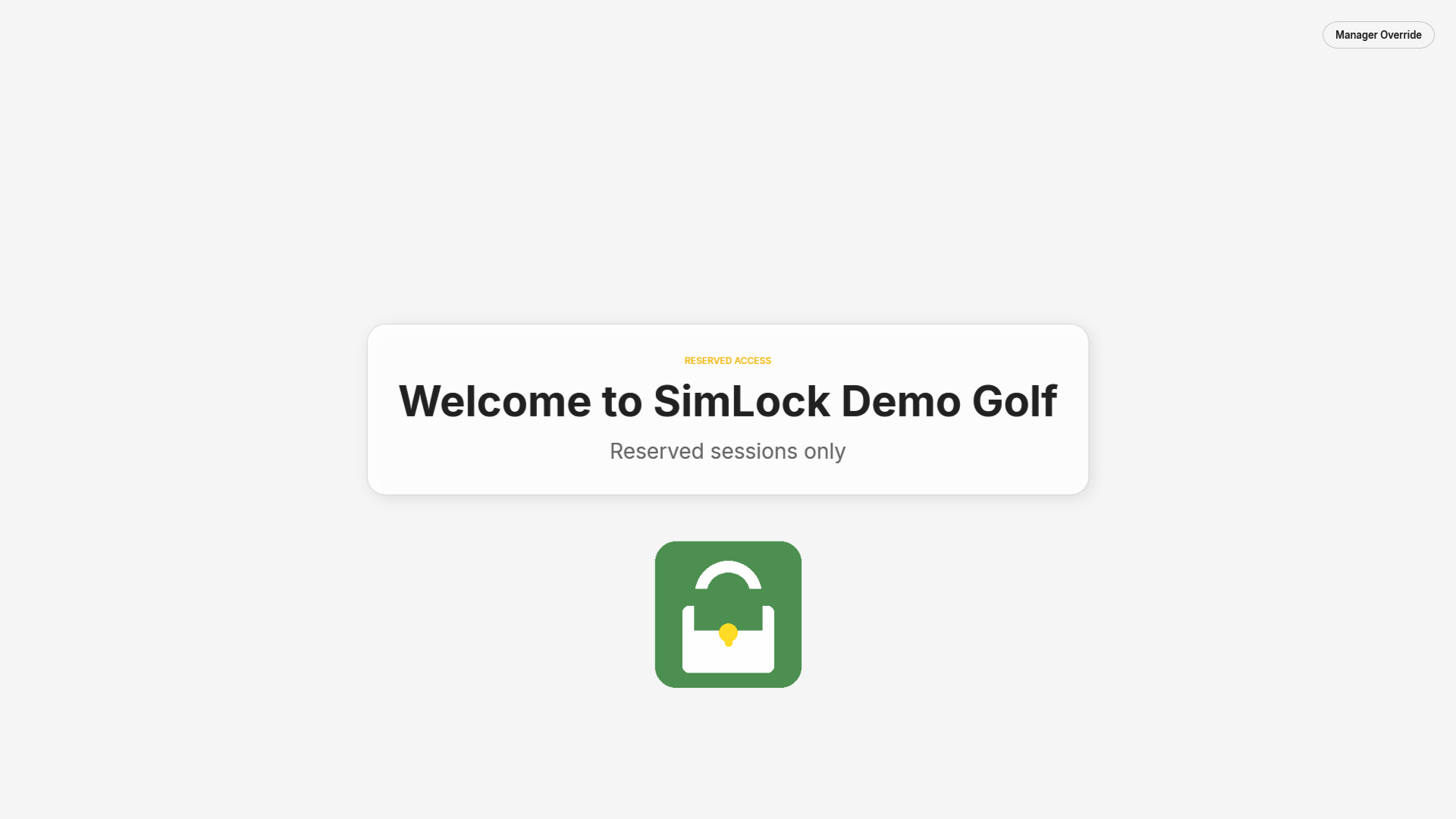 No active booking: the idle screen. Tapping it shows the walk-in message.
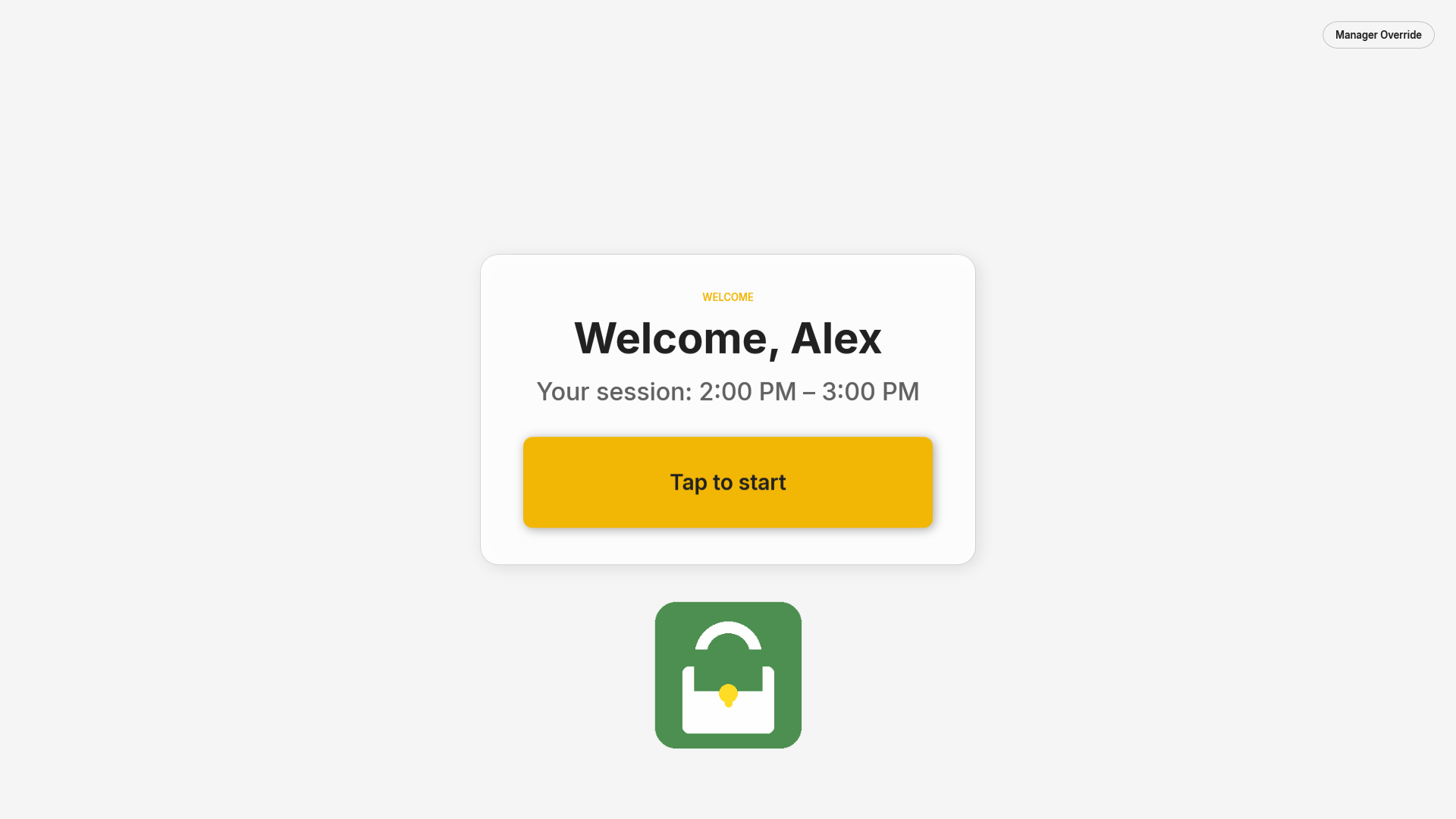 Active booking: the welcome screen with the golfer's first name and session time.
Unlock the kiosk for maintenance
The Manager Override button on the lock screen (configured on the Screen Text tab) asks for the admin password and unlocks the kiosk with hardening relaxed. Since 2.8.1 the override is indefinite: the kiosk stays unlocked, and the Monitor will not relaunch the lock screen, until you relock it. Relock from the Monitor tray icon with Launch Lock Screen or End Maintenance Mode, or from the Admin panel header with Lock Kiosk. Earlier versions expired the override after a set number of minutes; that timer is no longer shown in the Admin panel.