Operations · Launching the session app
Operations
Launching the session app
How SimLock starts and stops the simulator software when a reserved customer taps Start, including the Uneekor Launcher debug-port setup.
Where the setting lives
Open the Admin panel, go to General and find Session App Launch (Reservation Mode). The drop-down On session start, launch has three choices:
| Choice | What SimLock does when the customer taps Start |
|---|---|
| Nothing — software is already running | Nothing. This is the default. Your own launcher or autostart keeps the software running. |
| Uneekor GSPro tile (3rd-party app + GSPro) | Clicks the GSPro tile's Start Now button on the Uneekor Launcher. Uneekor then opens its 3rd-party app and auto-launches GSPro. |
| GSPro only | Starts the file in GSPro path (for GSPro-only mode) directly. Default C:\GSProV1\Core\GSP\GSPro.exe; use Browse to change it. |
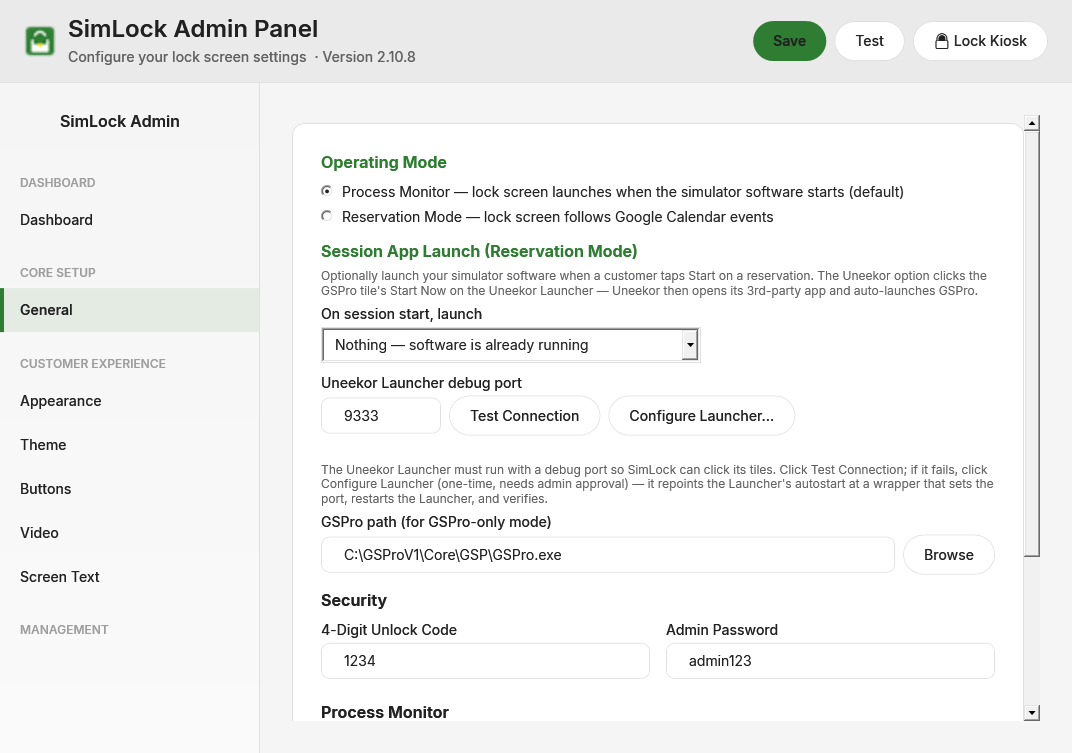 Session App Launch on the General tab.
This only applies in Reservation Mode. The launch runs in the background the moment the customer taps Start, so the software loads while any tutorial video plays. Every outcome is written to the activity log under session.launch; read it on the Dashboard under RECENT ACTIVITY.
Uneekor: how the tile click works
The Uneekor Launcher is a WebView2 application, and there is no GSPro launcher program to start. SimLock drives the Launcher's page over the Chrome DevTools Protocol (CDP) on 127.0.0.1 at the Uneekor Launcher debug port (default 9333). It finds the Launcher page, locates the tile whose image is labelled GSPro, and clicks the Start Now button next to it. If GSPro.exe is already running, the click is skipped and the log reads GSPro already running — Uneekor tile click skipped.
For this to work, the Launcher must be started with that debug port. The port must be set for the Launcher process only, never machine-wide: a machine-wide setting is inherited by every WebView2 app on the PC (Windows Widgets, Edge, Outlook) and they race for the same port. SimLock ships a wrapper for this at C:\Program Files (x86)\SimLock\Tools\launch_uneekor.cmd. It sets --remote-debugging-port=9333 for that one process and starts UneekorLauncher.exe.
Set it up
- Click Test Connection. Success reads
✓ Uneekor Launcher reachable on port 9333. Failure reads✗ CDP unreachable at 127.0.0.1:9333 (...) — is the Uneekor Launcher running via the CDP wrapper (Tools\launch_uneekor.cmd)?. - If it fails, click Configure Launcher… and confirm. Windows asks for administrator approval. The script removes any machine-wide debug-port setting, repoints every scheduled task that starts
UneekorLauncher.exeat the wrapper (or adds a Startup-folder shortcut if there is no task), restarts the Launcher and tests again. This takes about 20 seconds. Do not run it while a customer is playing. - Click Test Connection again. If it still fails, the setup log is shown under the buttons and is also saved at
%TEMP%\SimLock-UneekorCdp.log.
Desktop shortcuts bypass the wrapper
If staff open the Launcher from a shortcut that points straight at UneekorLauncher.exe, it starts without the port and the tile click fails. Point such shortcuts at the wrapper instead, or always start the Launcher from its scheduled task.
Changing the port
The wrapper hard-codes port 9333. If you change Uneekor Launcher debug port in Admin, edit launch_uneekor.cmd to match.
Self-heal at Start
If the tile click fails with CDP unreachable and GSPro is not running, SimLock restarts the Launcher itself: it logs Uneekor Launcher not answering on port 9333 — restarting it via CDP wrapper, ends the Launcher and its WebView2 child processes, starts it through the wrapper, waits up to 33 seconds for the port to answer, and clicks the tile once more. The result is logged as Launcher recycle: .... The stop sequence at session end does not self-heal.
When a click fails, the log entry also lists every Uneekor process and the port flag it carries. The line No process has a --remote-debugging-port: the Launcher was started WITHOUT the CDP wrapper. Run Configure Launcher. tells you exactly that.
GSPro only
SimLock starts the executable in GSPro path (for GSPro-only mode) with its own folder as the working directory. Log messages:
GSPro launch skipped — no path configured (Admin → General → Session App Launch)— the path box is empty.GSPro launch FAILED — file not found: ...— fix the path.GSPro already running — not relaunched— nothing to do.GSPro launched: C:\GSProV1\Core\GSP\GSPro.exe— success.
What happens at session end
A session ends when the reservation's end time passes, or when the event disappears from the calendar or is replaced by another one. If the customer had tapped Start, SimLock does three things:
- Stops the session app, according to the launch mode. Uneekor: it clicks Back on the Launcher, waits, then clicks Exit in the pop-up; Uneekor closes its 3rd-party app and GSPro and returns to the tile screen for the next customer. GSPro only: it terminates
GSPconnectandGSPro(GSPconnect would restart GSPro if left alone). Nothing: no stop action. Logged assession.stop. - Shows the Session Ended screen for 5 seconds.
- Force-closes the monitored process named in General → Process Monitor → Monitored Process (without .exe) (default
gspro), with its child processes. This hard cut runs in every launch mode, including Nothing.
Then the lock screen shows the next customer's welcome screen if a booking follows straight on, otherwise the idle screen.
If the customer never tapped Start (no-show or cancellation), nothing is stopped or killed; the lock screen moves on silently.