Admin panel · General
Admin panel
General
Choose the operating mode, set the unlock code and admin password, pick the program to watch, and decide what launches when a reservation starts.
The General tab holds the settings that decide how the kiosk behaves: which mode it runs in, who can get past the lock screen, and what program it watches or launches. Sections appear in this order: Operating Mode, Session App Launch (Reservation Mode), Security, Process Monitor.
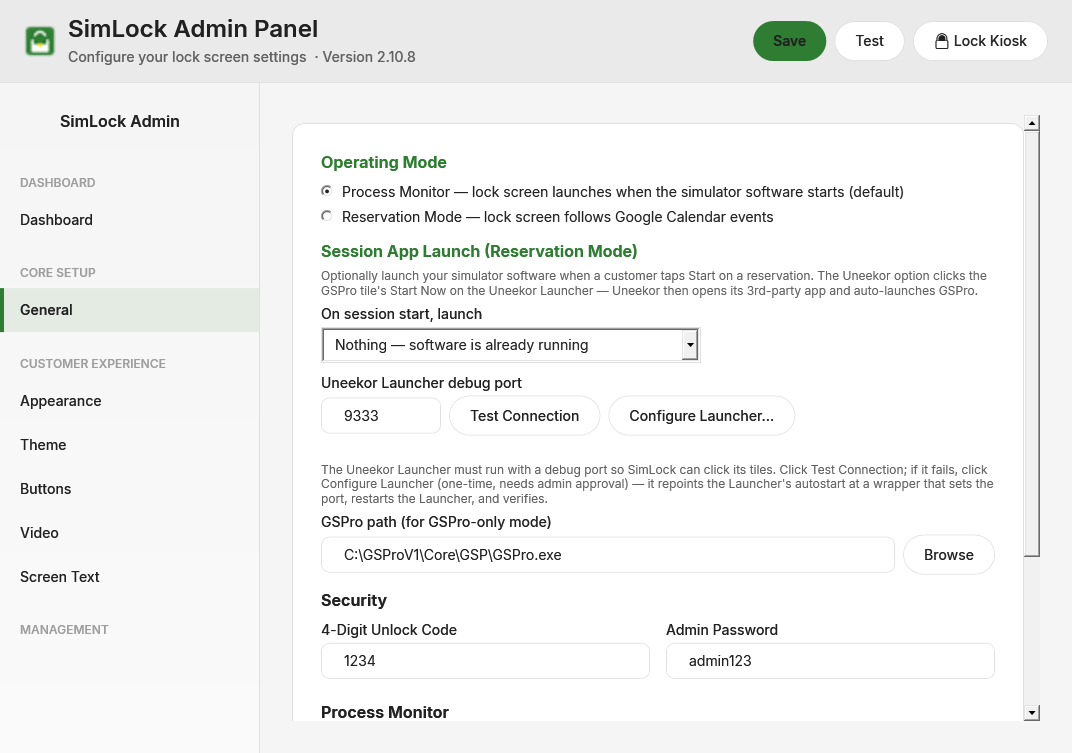 General tab in Process Monitor mode, with the Process Monitor section visible.
Click Save in the header when you are done. Nothing on this tab takes effect until you do.
Pick the operating mode
Two radio buttons at the top of the tab set the mode. They are always visible, so you can switch modes from either one.
| Option | What it does |
|---|---|
| Process Monitor — lock screen launches when the simulator software starts (default) | SimLock Monitor watches for the process you name below. When it starts, the lock screen covers it until a golfer enters the unlock code. |
| Reservation Mode — lock screen follows Google Calendar events | The lock screen shows an idle screen until a booking on this bay's calendar is due, then greets the customer by name. Needs the Calendar tab set up. |
Switching the radio changes the Admin panel straight away, before you save:
- Reservation mode shows the Calendar and Customers sidebar items and hides Buttons. It also hides the Process Monitor section here and the splash, menu and PIN sections on Appearance.
- Process Monitor mode does the reverse and hides the idle, welcome and session-ended sections on Screen Text.
If the tab you were on disappears, the panel falls back to the Dashboard. After you save, the Monitor reloads the config and shows a tray notification with the new mode.
Set the unlock code and admin password
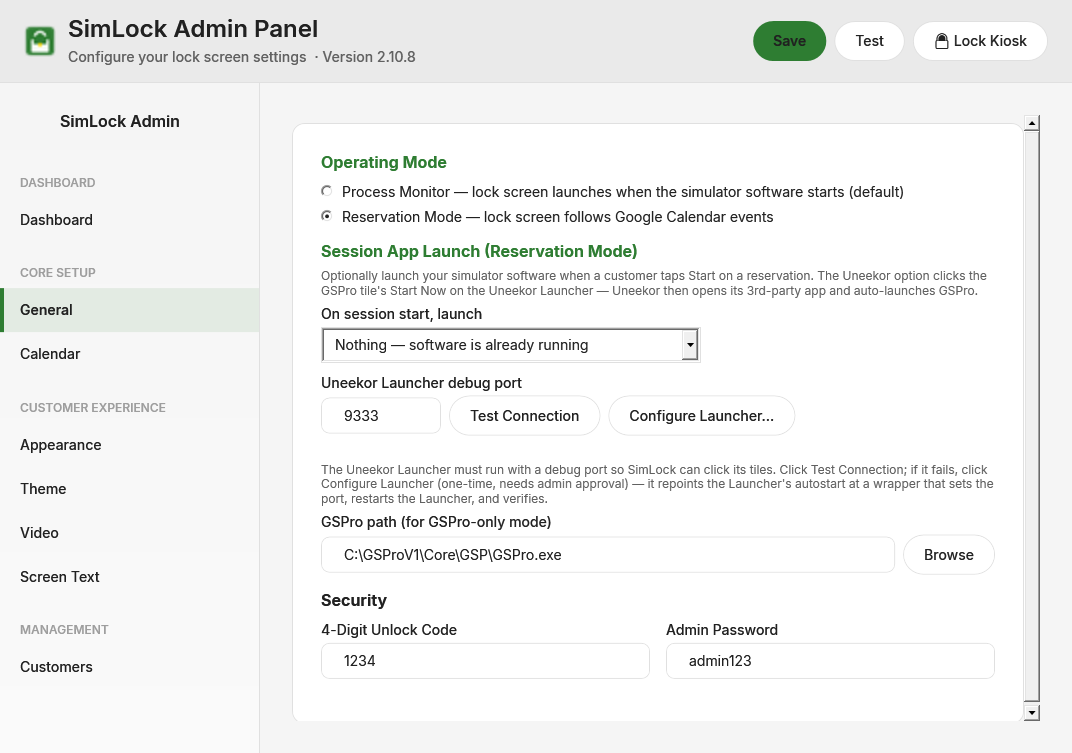 General tab in Reservation mode. The Process Monitor section is hidden.
| Setting | Default | What it does |
|---|---|---|
| 4-Digit Unlock Code | 1234 |
The PIN a golfer types on the Returning Golfer keypad to dismiss the lock screen. Must be exactly four digits; Save refuses anything else. |
| Admin Password | admin123 |
Protects the Admin panel login, the SimLock Monitor tray menu (every item except End Maintenance Mode), and the Manager Override prompt on the lock screen. Cannot be blank. |
Change both before the kiosk goes live
The defaults are printed in this guide. Anyone who reads it can unlock your bay until you change them.
Pick the program to watch
This section only shows in Process Monitor mode.
| Setting | Default | What it does |
|---|---|---|
| Monitored Process (without .exe) | gspro |
The process name the Monitor waits for. Type it without the .exe extension. |
| Select Software | Opens the Select Process to Monitor dialog listing every process running right now, with its window title. Type in the search box to filter, click Refresh to rescan, then double-click a row or click Select. | |
| Quick Select Common Apps | One-click presets. GSPRO Launcher fills the box with GSPro Launcher. |
Start your simulator software before you open Select Software, otherwise it is not in the list.
Decide what launches when a session starts
The Session App Launch (Reservation Mode) section is always visible but only matters in Reservation mode. It controls what SimLock does when a customer taps Start on the welcome screen. The default is to launch nothing, because most bays leave the simulator running all day.
| Setting | Default | What it does |
|---|---|---|
| On session start, launch | Nothing — software is already running | Leave it if your simulator is already up. Uneekor GSPro tile (3rd-party app + GSPro) clicks Start Now on the GSPro tile in the Uneekor Launcher. GSPro only starts GSPro directly. |
| Uneekor Launcher debug port | 9333 |
The port SimLock uses to drive the Uneekor Launcher. Test Connection checks it; Configure Launcher… sets it up once (needs admin approval and restarts the Launcher). |
| GSPro path (for GSPro-only mode) | C:\GSProV1\Core\GSP\GSPro.exe |
Where GSPro lives. Click Browse to pick GSPro.exe. |
Both launch options also stop the session when the booking ends: the Uneekor option presses Back and Exit in the Launcher, and GSPro only closes GSPro and GSPconnect. Read Session launch before turning it on; it has the full setup and what Test Connection should say.
Find the Manager Override settings
The Manager Override button is not configured here. Its two settings live on the Screen Text tab:
- Show Manager Override button on lock screen (on by default) puts a small button in the top-right corner of the lock screen.
- Button Text (default
Manager Override) is its label.
Tapping it prompts for the Admin Password from this tab. On success the kiosk unlocks and stays unlocked, with hardening relaxed, until you relock it with Lock Kiosk on the Dashboard or Launch Lock Screen on the tray icon. There is no timer to set; earlier versions had one, and it was removed.