Admin panel · Screen Text
Admin panel
Screen Text
Change the words and text sizes on every lock screen, including the reservation-mode idle, welcome and session-ended screens.
The Screen Text tab holds every piece of wording the lock screen shows. Click Save when you are done; the running lock screen picks up the change within about a second.
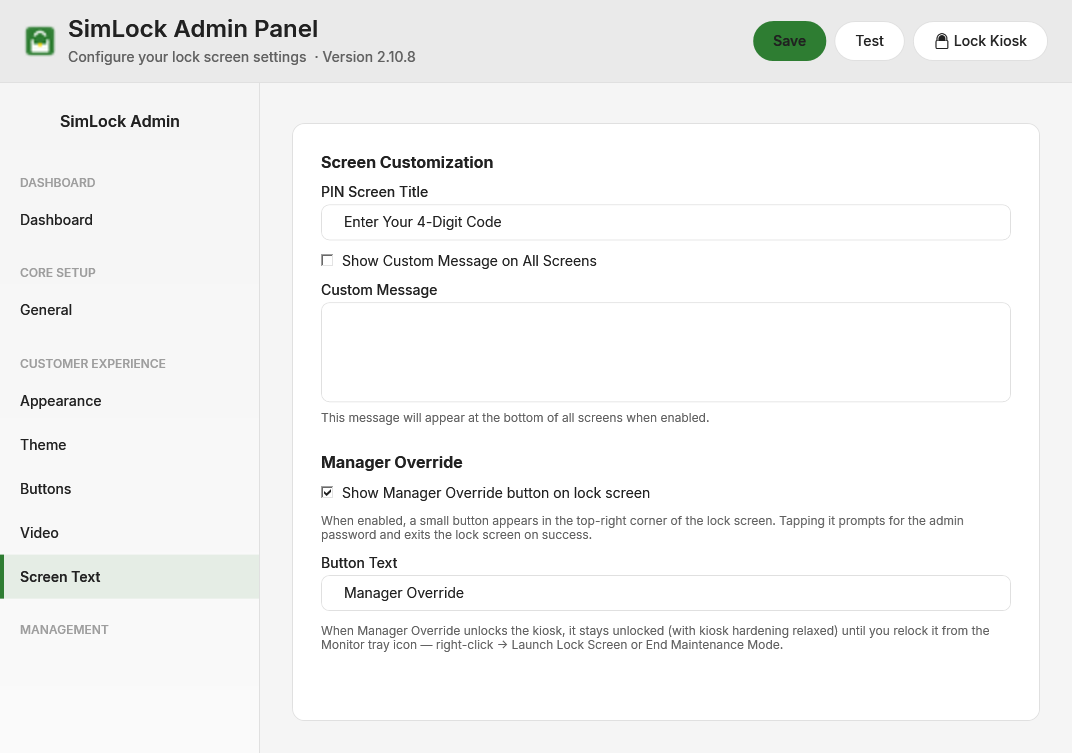 Screen Text in process-monitor mode: PIN title, custom message and Manager Override.
Change the PIN screen and custom message
| Setting | Default | What it does |
|---|---|---|
| PIN Screen Title | Enter Your 4-Digit Code | Heading above the keypad on the PIN entry screen. |
| Show Custom Message on All Screens | off | Shows the custom message at the bottom of the splash, menu and PIN screens. |
| Custom Message | empty | The text itself. Line breaks are allowed. Nothing shows if the box is empty. |
The splash title, subtitle and their text sizes live on the Appearance tab.
Configure the Manager Override button
| Setting | Default | What it does |
|---|---|---|
| Show Manager Override button on lock screen | on | Shows a small button in the top-right corner of the lock screen. |
| Button Text | Manager Override | The label on that button. |
Tapping the button asks for the admin password. On success the kiosk unlocks and stays unlocked, with kiosk hardening relaxed, until you relock it from the Monitor tray icon (Launch Lock Screen or End Maintenance Mode) or with Lock Kiosk in the Admin panel header. See Calendar & reservation mode for details.
Edit the reservation screens
The rest of the tab only appears when Operating Mode is Reservation. It covers the three screens a golfer sees around a booking.
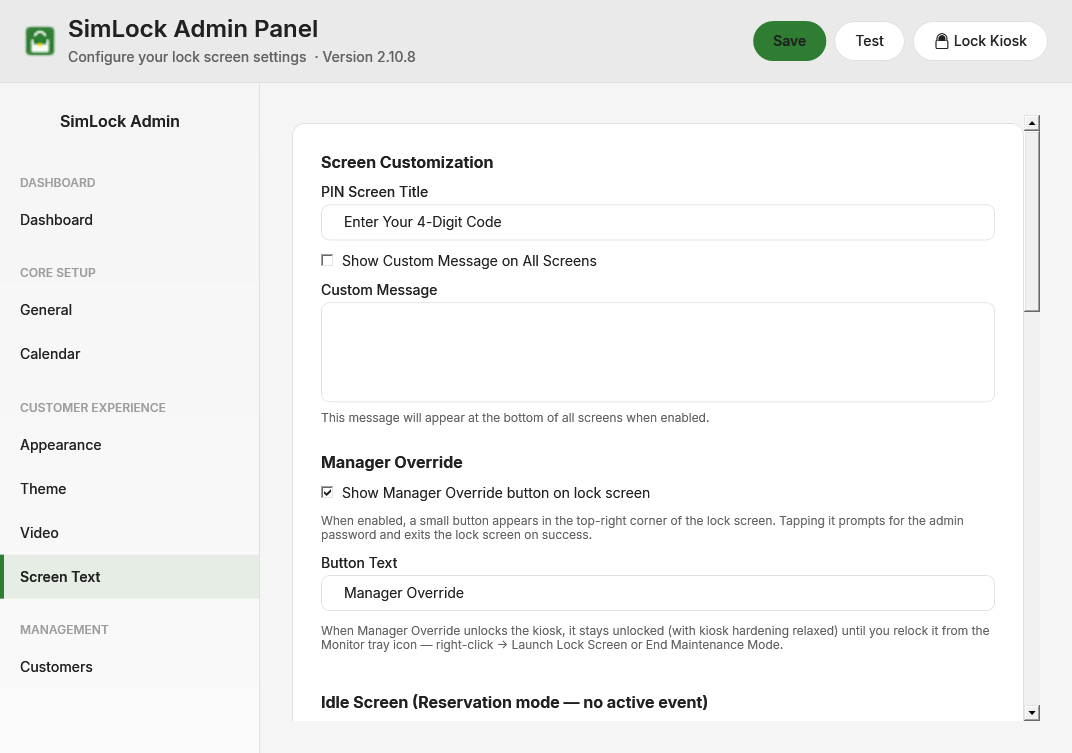 Idle, Welcome and Session Ended sections appear in reservation mode.
Idle screen (no active event)
| Setting | Default | What it does |
|---|---|---|
| Idle Eyebrow | RESERVED ACCESS | Small line above the title. |
| Idle Title | Welcome | Main heading. |
| Title Size | 56 px | Slider, 24 to 120. |
| Idle Subtitle | Reserved sessions only | Line under the title. |
| Subtitle Size | 28 px | Slider, 12 to 72. |
| Eyebrow / Title / Subtitle colours | blank | Hex colour such as #212121 for each line. Blank uses the theme text colour. An invalid value is ignored. |
| Show next session time on idle screen | on | Saved, but has no visible effect: the next-session line was removed from the idle screen in 2.6.4. |
| "Next session" Label Prefix | Next session: | Saved, but unused for the same reason. |
| Walk-in Toast Message | Reserved sessions only — please contact staff | Pops up for three seconds when someone taps the idle screen. Leave empty to show nothing. |
Welcome screen (event active)
| Setting | Default | What it does |
|---|---|---|
| Title Template | Welcome, | Heading. Supports placeholders. |
| Title Size | 56 px | Slider, 24 to 120. |
| Session Time Template | Your session: {startTime} – {endTime} | Line under the heading. Supports placeholders. |
| Session Time Size | 32 px | Slider, 12 to 72. |
| Start Button Text | Tap to start | Label on the big button. If you blank it, the button still says "Tap to start". |
Session Ended screen (event over)
This screen appears for five seconds after a booking ends, but only if the golfer actually tapped the start button. A no-show or cancellation goes straight back to idle.
| Setting | Default | What it does |
|---|---|---|
| Title Template | Hello {firstName}, your session has ended. | Heading. Supports placeholders. |
| Title Size | 48 px | Slider, 24 to 120. |
| Subtitle Template | Thank you for golfing with us! | Line under the heading. Supports placeholders. |
| Subtitle Size | 28 px | Slider, 12 to 72. |
Use placeholders in templates
The Welcome and Session Ended templates replace these four placeholders. Anything else is shown literally.
| Placeholder | Replaced with | Example |
|---|---|---|
{firstName} |
Golfer's first name | Jane |
{lastName} |
Golfer's last name | Smith |
{startTime} |
Booking start, local kiosk time | 2:00 PM |
{endTime} |
Booking end, local kiosk time | 3:00 PM |
Times always use the h:mm tt form (for example 9:30 AM); the template controls the words around them, not the time format.
The name comes from the booking as described in Calendar & reservation mode. It is split on the first space, so "Jane Smith" gives Jane and Smith, and "Smith, Jane" is understood as last name first. A single-word name fills {firstName} and leaves {lastName} empty. If the booking carries no name at all, both placeholders are empty, so a template like "Welcome, {firstName}" renders as "Welcome, ".
Remove a club suffix from names
If your booking system adds the location to the name ("Jane Smith Stratford"), add that word to Customer Name Cleanup on the Calendar tab so {lastName} stays clean. See Customers.
Eyebrow text on Welcome and Session Ended
The small "WELCOME" and "SESSION COMPLETE" lines above the title on those two screens are fixed and cannot be changed here.