Admin panel · Buttons
Admin panel
Buttons
Show or hide the standard main menu buttons and add up to two custom buttons that open a program, website, video, PDF or picture.
The Buttons tab decides which buttons appear on the lock screen's main menu in Process Monitor mode. It has a Standard Buttons section and two boxes, Custom Button 1 and Custom Button 2.
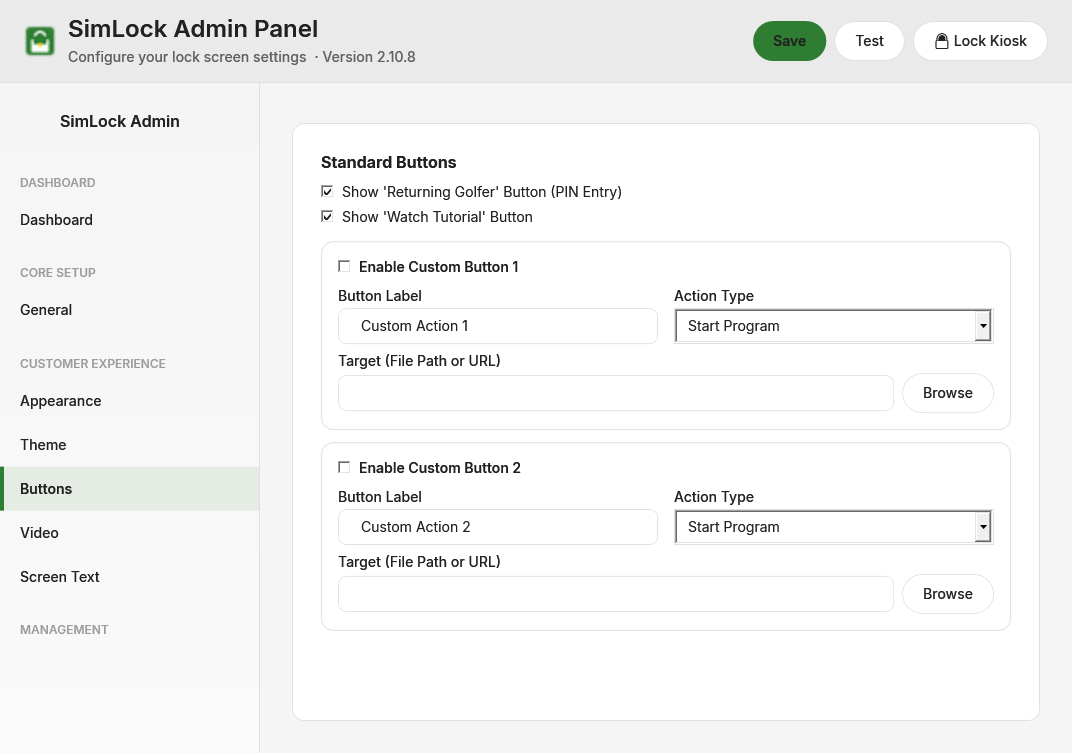 The Buttons tab.
Not available in Reservation mode
The main menu only exists in Process Monitor mode, so the Buttons sidebar item is hidden when Reservation mode is selected on the General tab. Reservation screens have their own Start Button Text on Screen Text.
Click Save when you are done. A running lock screen updates its buttons straight away.
Show or hide the standard buttons
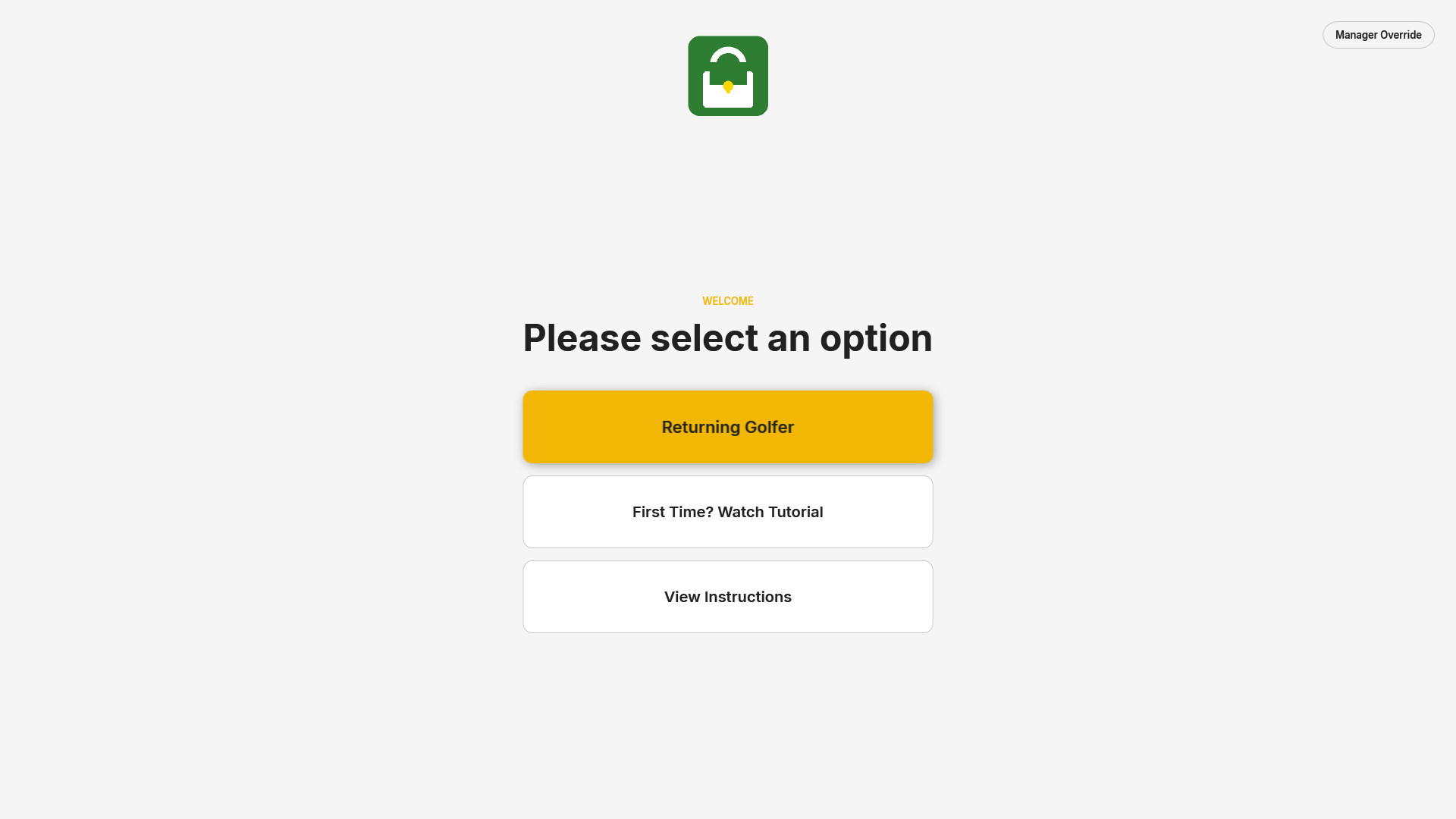 The main menu with both standard buttons and no custom buttons.
| Setting | Default | What it does |
|---|---|---|
| Show 'Returning Golfer' Button (PIN Entry) | on | Shows the Returning Golfer button. It opens the keypad where the golfer types the 4-Digit Unlock Code from the General tab. |
| Show 'Watch Tutorial' Button | on | Shows the First Time? Watch Tutorial button, which plays the tutorial video from the Video tab. |
A third standard button, View Instructions, is controlled from the Video tab by Show a 'View Instructions' button on the menu. It only appears when Enable instructions screen is also ticked there.
Do not hide every way in
If you turn off Returning Golfer and add no custom button that unlocks, golfers have no way past the lock screen except a staff member with the Manager Override button. Keep at least one.
Add a custom button
Each custom button box has the same four controls. Buttons appear on the main menu below the standard ones, in the same style as the tutorial button, in order: Custom Button 1 then Custom Button 2.
| Setting | Default | What it does |
|---|---|---|
| Enable Custom Button 1 / Enable Custom Button 2 | off | Shows the button on the main menu. |
| Button Label | Custom Action 1 / Custom Action 2 |
The text on the button. |
| Action Type | Start Program | What tapping the button does. See the table below. |
| Target (File Path or URL) | blank | The program, file or address the action uses. Browse opens a file picker filtered to the right file type for the chosen action. For Open Website there is nothing to browse; type the address into the box. |
Choose an action type
| Action Type | Target | What happens on the kiosk |
|---|---|---|
| Start Program | An .exe |
Starts the program, then unlocks and closes the lock screen. |
| Open Website | A URL | Opens the address in the default browser, then unlocks and closes the lock screen. |
| Play Local Video | .mp4, .avi, .mkv, .wmv or .mov |
Plays the file in SimLock's built-in player. The kiosk stays locked and returns to the menu afterwards. |
| Open PDF Document | A .pdf |
Opens the file in the default PDF viewer, then unlocks and closes the lock screen. |
| Open Picture | .png, .jpg, .jpeg, .bmp, .gif or .webp |
Opens the file in the default image viewer, then unlocks and closes the lock screen. |
Four of the five actions unlock the kiosk
Only Play Local Video keeps the lock screen up. A custom button that opens a program, website, PDF or picture hands the desktop to whoever tapped it, exactly as if they had entered the unlock code. Use those for things you are happy to give walk-ins, such as a scorecard app or a booking page, not as a shortcut for staff.
For a full-screen web page or PDF that closes itself and keeps the kiosk locked, use the instructions screen on the Video tab instead.
Check that the target exists
SimLock does not validate the target when you save. When a golfer taps the button:
- An empty target shows No target configured for this action.
- A PDF or picture path that no longer exists shows File not found: with the path; a missing video shows Video file not found:.
Both leave the golfer on the menu. Keep files in a folder that stays on the kiosk PC (for example under C:\ProgramData\SimLock\) rather than on a removable drive or a network share, and test each button once with Test in the header after saving.